
How to Set Up and Configure Mobile Device Accessories and Ports for CompTIA A+ Core 1 (220-1101)
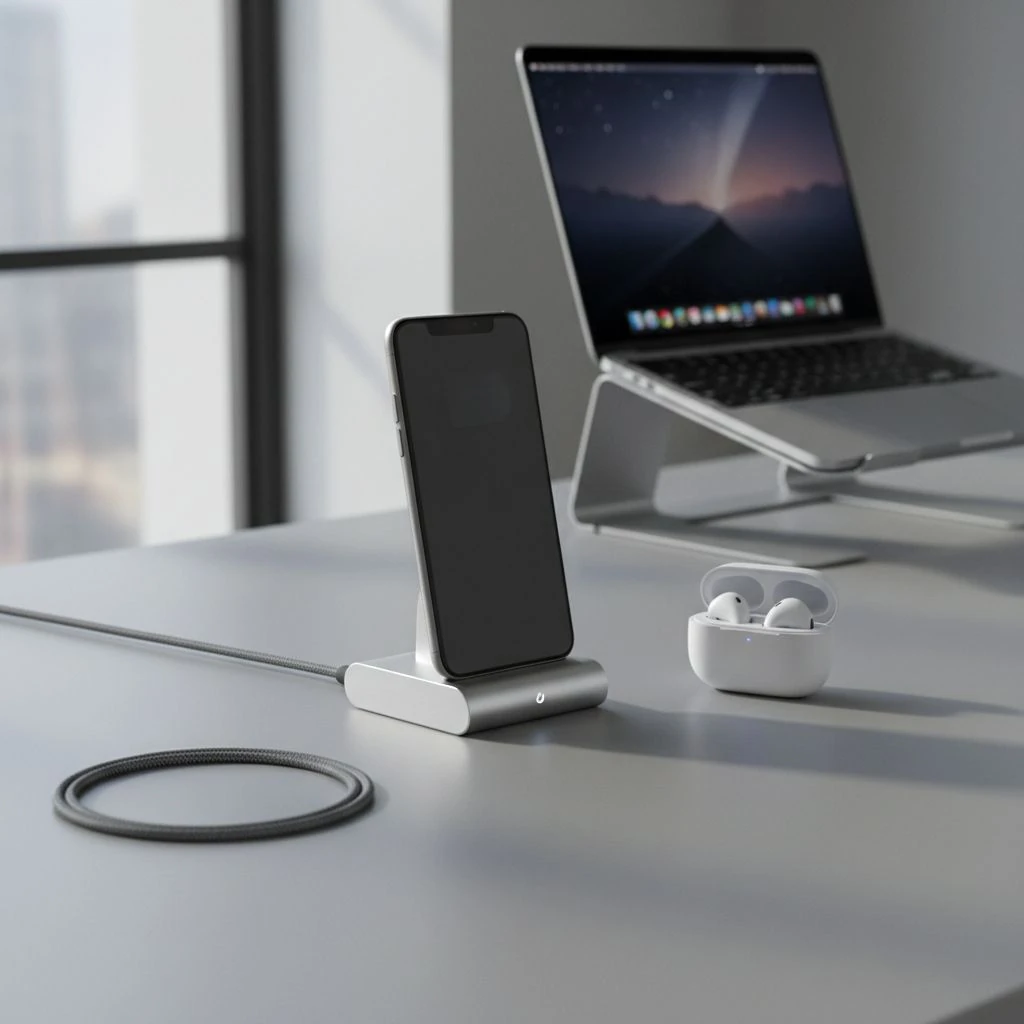
When I teach this CompTIA A+ Core 1 objective, I frame it one way: CompTIA is testing whether you can make a mobile accessory work for the intended function. So yeah, it’s definitely more than just recognizing the connector shape. You’ve got to walk through the whole chain — the port, the cable or wireless method, the device settings, any trust or permission prompts, the compatibility limits, and then, just as important, confirm that the thing actually works the way it should. A phone that charges but does not transfer files is not “working” if the user asked for file transfer. And honestly, if a Bluetooth headset is paired but still won’t route calls, I wouldn’t call that properly configured yet.
That mindset lines up really well with 220-1101 language too — accessories, ports, Bluetooth, NFC, hotspot and tethering, and all the different ways mobile devices connect. The exam likes practical distinctions such as charging vs data, paired vs connected, hotspot vs joining Wi-Fi, and connector shape vs actual capability. If you keep those straight in your head, this objective gets a whole lot easier.
Objective Alignment and What CompTIA’s Really Looking For
For this objective, expect scenarios built around headsets, speakers, styluses, docks, keyboards, trackpads, battery packs, vehicle connections, and those specialty peripherals you run into in retail, healthcare, and field support. You’ll also want to know the common mobile ports and slots: USB-C, micro-USB, Lightning, 3.5 mm audio, SIM, and microSD. Thunderbolt is worth knowing as USB-C-adjacent context on some tablets and laptops, but I wouldn’t expect it to show up in a typical smartphone question.
What CompTIA is really testing is your ability to choose the best next step. Usually that means starting with the simplest explanation first — wrong cable, wrong mode, missing permission, stale pairing, unsupported adapter, or some kind of policy restriction. Read the cue words carefully, because phrases like “charges but,” “paired but,” “visible but,” or “works on one device but not another” usually point to a mode issue, a profile issue, a capability limit, or a compatibility mismatch.
Common Mobile Ports and What They Actually Support
USB-C is the most common modern connector on Android phones, tablets, and many accessories. But here’s the thing: USB-C is just the shape of the connector, not a promise that every feature you might expect is actually supported. A USB-C port might support basic USB data and charging, and some implementations also support USB Power Delivery, DisplayPort Alt Mode for video, digital audio, or even Thunderbolt on certain tablets and laptops. Cable quality matters just as much, too. Some cables are charge-only, some only support basic USB 2.0 data speeds, and higher-power USB-C setups may need e-marked cables.
Micro-USB is older but still exam-relevant on legacy phones, e-readers, scanners, and accessories. It commonly supports charging and basic data. OTG is historically associated with micro-USB devices, though the bigger concept is whether the mobile device can act as a USB host.
Lightning is Apple’s older mobile connector used on many iPhones and older iPads. It supports charging, syncing, and accessories, but compatibility is best with MFi-certified or otherwise known-compatible accessories. Unsupported third-party accessories can get weird pretty fast — they may charge inconsistently, fail data functions, or pop up compatibility warnings.
3.5 mm audio is analog audio. TRS plugs carry stereo audio only. TRRS adds microphone support. A CTIA vs OMTP pinout mismatch can cause no mic, bad button behavior, or incorrect audio routing; CTIA is the dominant modern standard.
SIM and eSIM handle carrier identity and cellular service. If the SIM is bad, not seated right, the wrong size, carrier-locked, not activated, or the eSIM profile didn’t download correctly, you can absolutely end up with call and mobile data problems.
microSD provides removable storage on supported devices. Support varies a lot by model and by operating system policy. Some devices only use it for media storage, some support adoptable storage, and some don’t have a slot at all.
Port and Slot Summary
- USB-C: Charging, USB data, and sometimes audio, video, or dock support. The connector shape by itself does not guarantee Power Delivery, video output, analog audio, or Thunderbolt support.
- Micro-USB: Charging, basic data, and legacy OTG support. It’s older, a little more fragile, slower, and, let’s be honest, orientation-sensitive in the most annoying way.
- Lightning: Charging, syncing, and Apple accessory support. MFi compatibility matters, and trust prompts may block data access.
- 3.5 mm TRS/TRRS: Analog audio and possibly microphone support. The common headaches are TRS versus TRRS mismatches and CTIA versus OMTP pinout issues.
- SIM / eSIM: Cellular activation, calling, and mobile data. Common problems include activation issues, carrier lock, APN settings, or a SIM that just isn’t seated properly.
- microSD: Expandable storage. Common issues include formatting problems, corruption, counterfeit cards, and cards that go beyond what the device actually supports.
Setting Up Accessories: Wired, Wireless, and Specialty Devices
When I set up wired accessories, I like to group them by function first, because it keeps troubleshooting a lot cleaner. Audio devices may use 3.5 mm, USB-C, Lightning, or a dock. Input devices such as keyboards, mice, and some styluses require the device to support host mode. Docks and hubs may provide charging, USB, Ethernet, and display output, but only if the mobile device supports the necessary features. Power accessories such as battery packs and chargers must match the device’s charging standard. Specialty peripherals like barcode scanners, payment readers, and label printers often need a companion app, vendor software support, HID mode, or app-specific permission.
Be precise with docks. Native USB-C video usually depends on DisplayPort Alt Mode. Some docks use DisplayLink, which can work differently and may require software support on the host. On mobile devices, especially managed or locked-down ones, that support can disappear pretty quickly. So if a dock charges a tablet but the external display stays dark, that usually points to missing DP Alt Mode support rather than a bad cable.
For USB headsets and speakers, most standard class-compliant audio devices are basically plug-and-play on modern platforms. Extra drivers are more likely for advanced vendor features, not basic audio. And with styluses, keep the difference in mind between passive models and active ones that may need Bluetooth, charging, or app support.
Bluetooth Pairing, Connecting, and Profiles
Bluetooth problems make more sense when you separate three ideas: pairing, bonding, and connecting. Pairing exchanges credentials and establishes a remembered relationship. Connecting is the active session. A device can be paired but not actively connected, or it can be connected for one function and not another.
That is where Bluetooth profiles matter. A2DP handles stereo media audio. HFP/HSP handles call audio and headset behavior. AVRCP handles media controls. HID is used by keyboards and mice. PAN can be used for Bluetooth tethering. BLE is common for low-power accessories such as wearables and sensors. If a phone pairs with a car and calls work but music doesn’t, that’s usually a profile or settings issue, not a complete pairing failure.
Basic workflow: turn on Bluetooth, put the accessory in pairing mode, select it, approve the request, and then test the exact function you need. If it fails, forget the pairing on both sides, reset the accessory if it supports that, and try again. And check whether the accessory is already connected to something else, because multipoint accessories can make the symptoms look a lot more mysterious than they really are.
NFC can make setup easier by starting or launching pairing, but the ongoing connection is usually still Bluetooth or Wi‑Fi Direct. Wi‑Fi Direct is basically peer-to-peer Wi‑Fi without a traditional access point, although support for it can vary a lot by vendor.
USB Modes, Host Roles, and File Transfer
This is one of the highest-yield A+ topics. Charging does not mean data access — and that one trips people up all the time. A phone can charge from a PC and still block file transfer if the cable is charge-only, the device is locked, the user hasn’t approved the trust prompt, the wrong USB mode is selected, or some enterprise policy is blocking USB data.
On Android, once you connect the cable, unlock the device and check the USB notification. Depending on vendor and version, options may include Charging only, File Transfer, Photo Transfer, or wording such as File Transfer / Android Auto. MTP is commonly used for file/media transfer. PTP exposes photo-transfer behavior more like a camera.
On iPhone and iPad, the key step is often unlock plus Trust This Computer. On modern macOS, use Finder to verify the device; on older macOS and some Windows workflows, iTunes or the Apple Devices app may be relevant.
Host versus peripheral role matters here, too. When a phone connects to a PC for file transfer, the phone is usually acting as the peripheral. When a tablet uses a USB adapter to control a keyboard, mouse, flash drive, or scanner, the mobile device must support USB host mode. A lot of people still call that OTG, especially on older Android devices, but host support is the real concept underneath it.
Quick lab: Use a known-good data cable, connect the phone, unlock it, approve trust if prompted, select File Transfer or PTP if needed, then verify the device in File Explorer, Finder, or the appropriate Apple management tool.
Hotspot and Tethering
Hotspot means the phone is providing Wi-Fi to another device using its cellular connection as the backhaul. That’s completely different from the phone joining Wi‑Fi as a client. Set the hotspot SSID and password, choose the security options if they’re available, connect the client, and then verify that actual internet access is working. Seeing the SSID is not enough.
Some devices let you choose 2.4 GHz or 5 GHz for hotspot operation, and that can matter more than people realize. 2.4 GHz usually gives you better compatibility and range, while 5 GHz can give you better throughput at shorter distances. Platform behavior varies, too — on some devices, enabling hotspot changes how Wi‑Fi is used or may disable certain wireless behaviors at the same time. Carrier plan restrictions and MDM policy can also shut tethering down completely.
USB tethering shares internet over a cable. Bluetooth tethering shares it over Bluetooth, usually with lower performance. For troubleshooting, I’d verify that cellular data actually works on the phone first, then confirm tethering is enabled, reconnect the client, and test browsing. If the client connects but still has no internet, look at signal strength, carrier restrictions, APN or service issues, and policy restrictions.
Charging, Power Standards, and Wireless Charging
Charging is basically a negotiation between the device, the charger, and the cable. USB Power Delivery is a common USB-C charging standard that negotiates power levels over compatible hardware. Proprietary fast-charge systems also exist, and they’re not always interchangeable with each other. If the device, charger, and cable don’t all support the same fast-charge method, the result usually falls back to standard or reduced-rate charging.
Some cables support high power but only basic data, which is one of those annoying details that causes all kinds of confusion in the field. Some support data but not higher charging rates. An underpowered charger can lead to slow charging, battery drain while the device is in use, or a dock that only sort of works because it doesn’t have enough pass-through power.
For wireless charging, Qi is the common standard. Alignment matters, and thick cases, metal plates, foreign objects, or heat can all get in the way. Fast wireless charging also depends on charger and device compatibility. Thermal throttling can slow charging down even when everything is technically working fine.
Audio Adapters and Compatibility Checks
USB-C audio is a major exam trap. Some USB-C to 3.5 mm adapters are passive analog adapters that rely on the phone exposing analog audio accessory mode. Others are active digital DAC adapters that convert digital audio to analog inside the adapter. Not every phone supports analog audio over USB-C, so an adapter that works perfectly on one device may fail on another.
When you test a headset, check the output and input separately. Play audio first to confirm the speaker path, then record a voice memo or make a test call to confirm the microphone path. If audio works but the mic doesn’t, think TRS versus TRRS, a CTIA versus OMTP mismatch, or an adapter that only supports output.
SIM, eSIM, and microSD Setup
For SIM issues, I’d first figure out whether the problem is device hardware, carrier service, or configuration. If policy allows, reseat the SIM, verify activation, toggle Airplane mode, confirm the device isn’t carrier-locked, and check APN settings if mobile data is the only thing failing. With eSIM, common issues include a failed profile download, incomplete activation, or the wrong carrier profile being selected.
For microSD, insert the card, verify that the device recognizes it, format it if needed, and then test read and write access. Watch for corruption symptoms, counterfeit cards, unsupported capacities, or file-system issues like FAT32 versus exFAT support. And if the platform requires it, safely eject or unmount removable storage before removing it.
Security, Permissions, and Managed Device Restrictions
Security is part of the setup process. USB trust prompts, lock-screen restrictions, Bluetooth approval, microphone permissions, contact-sharing prompts during vehicle pairing, and file-access prompts can all decide whether an accessory actually works. In enterprise, education, and healthcare environments, MDM policies may block USB file transfer, hotspot, Bluetooth pairing, removable storage, camera access, or specific apps needed by the accessory.
And don’t forget the basics: use strong hotspot passwords, remove unknown Bluetooth pairings, don’t leave accessories discoverable longer than needed, and be careful with untrusted chargers or public USB ports because of data exposure risks. If you’re checking a dirty charging port, clean it carefully with nonconductive tools and follow the manufacturer’s or your organization’s policy.
Troubleshooting Workflow and High-Yield Scenarios
I like to use the same repeatable process every time: identify the intended function, verify the physical connection or pairing mode, check settings and permissions, confirm compatibility, test with known-good hardware, inspect the port or accessory, update the OS or firmware if it matters, and then retest.
Common Symptoms and Best Next Steps
- Phone charges but PC does not see files: Most likely causes are a charge-only cable, locked device, no trust approval, wrong USB mode, or MDM block. Best next step: use a known-good data cable, unlock the device, approve trust, select File Transfer or PTP, and then check whether the operating system actually detects the device.
- Bluetooth headset paired but no music: Most likely causes are A2DP not active, wrong output selection, or stale pairing. Best next step: check the Bluetooth profile or service options, reconnect, or forget the device and pair it again.
- Car kit handles calls but not media: Most likely cause is that HFP works but A2DP or AVRCP is not enabled or supported. Best next step: verify the media audio setting for that paired device.
- Hotspot visible but laptop has no internet: Most likely causes are no cellular data, carrier restriction, or poor signal. Best next step: test internet access on the phone first, then reconnect the client and try again.
- Dock charges tablet but no external display: Most likely cause is no DP Alt Mode support or an incompatible dock or cable. Best next step: verify the device’s video-out support and the dock type.
- Headset audio works but mic fails: Most likely causes are TRS/TRRS mismatch, CTIA/OMTP issue, or an output-only adapter. Best next step: test with a known-good TRRS headset or adapter and check the input settings.
Four exam-style patterns show up constantly:
Charges but no data: think cable, unlock state, trust prompt, USB mode, or policy.
Paired but no function: think profile, permissions, wrong output, or stale pairing.
Connected to hotspot but no internet: think cellular backhaul, carrier plan, or signal.
Adapter fits but does not work: think unsupported function, not bad hardware.
Exam Prep: Terms, Traps, and Best-Next-Step Thinking
Memorize these quick terms: MTP file/media transfer, PTP photo transfer, NFC tap-to-initiate setup, Wi‑Fi Direct peer-to-peer Wi‑Fi, HFP/HSP call audio, A2DP stereo audio, HID keyboard/mouse, Qi wireless charging, USB PD negotiated USB-C power.
Top exam traps: connector shape does not prove capability; charging is not data; paired is not connected; hotspot is not joining Wi‑Fi; visible SSID is not internet access; and adapter fit is not compatibility. CompTIA often rewards the least invasive, most logical next step: try a known-good cable, approve the prompt, select the correct mode, or verify the correct profile before replacing hardware.
Rapid review: verify the intended function, confirm the right port or wireless method, check prompts and permissions, use known-good hardware, and remember that many failures are compatibility or policy problems rather than broken devices. If you approach these scenarios like a technician instead of a memorizer, you will be ready for both the exam and real support work.