
CompTIA A+ Core 1 Cable Types Explained: Connectors, Features, and Common Uses
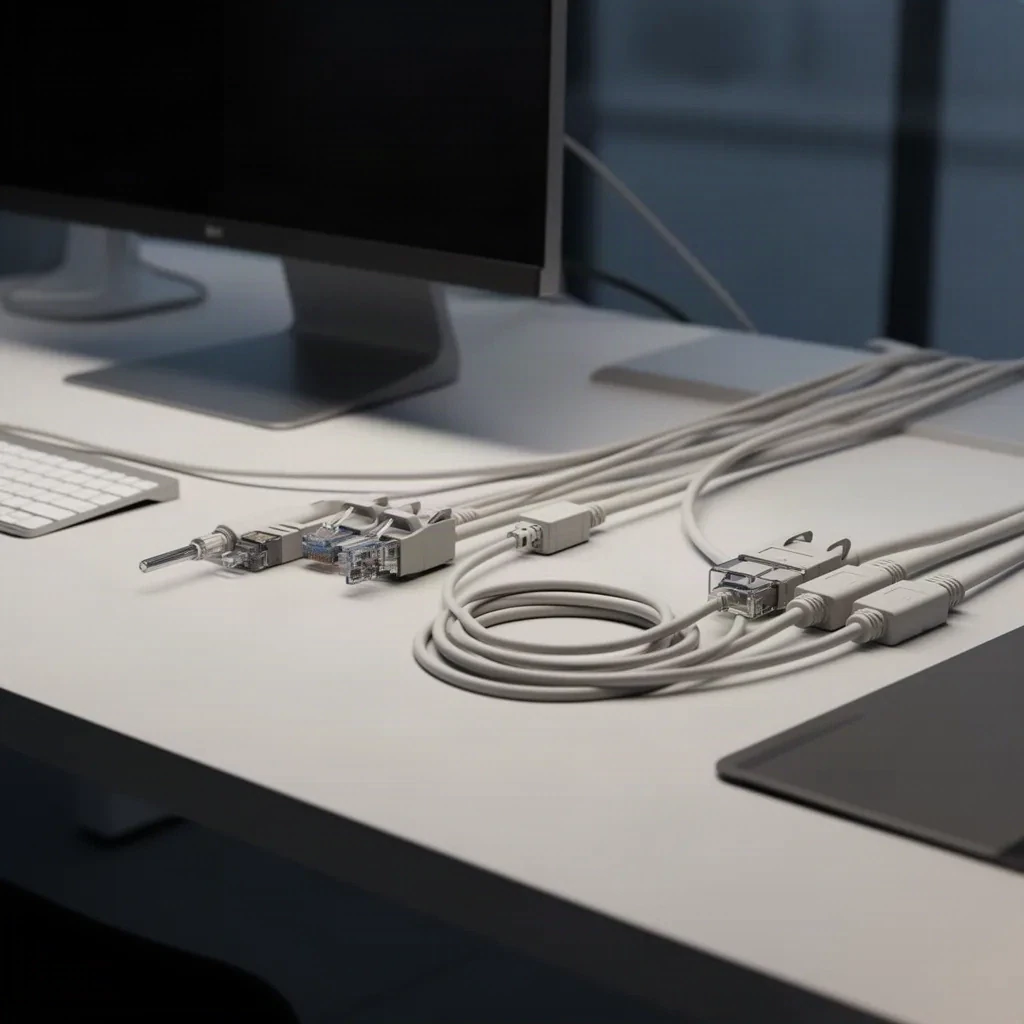
Introduction: Why Cable Knowledge Matters in A+ and IT Support
When you’re studying for CompTIA A+ Core 1, cable questions definitely aren’t just random trivia. They’re really checking whether you can spot the connector, know what it’s supposed to carry, and figure out the most likely place it’s going wrong. In the field, honestly, a lot of “big system issues” turn out to be nothing more than a cable, connector, adapter, or port problem.
For exam success, think in a simple pattern: connector shape + purpose + limitation. If you can spot the cable, match it to the right device, and remember the one thing it’s bad at, you can eliminate a lot of answer choices without overthinking it.
Terminology note: In field speech and many training materials, people often say RJ-45 for Ethernet and RJ-11 for phone-style modular connectors. Strictly speaking, common Ethernet jacks and plugs are usually 8P8C modular connectors, and phone connectors are part of the 6-position modular family. For A+, you’ll want to know the everyday names for sure, but it’s also smart to understand the technical difference so the exam doesn’t sneak up on you.
Twisted-Pair Ethernet Cables
Twisted-pair copper Ethernet is basically the everyday cable of the office world—you’ll see it on most network drops without even trying. In a typical office, this is the cable that connects all the usual suspects—PCs, printers, VoIP phones, access points, switches, routers, patch panels, and wall jacks.
Connector: 8P8C modular connector, commonly called RJ-45
Purpose: LAN connectivity
Key limit: Standard structured copper Ethernet runs are typically limited to 100 meters total channel length, commonly 90 m permanent link + 10 m patch cords.
There are also practical distinctions between solid-core and stranded cable. Solid-core cable is usually what you’ll find in the walls and on punch-down terminations. Stranded cable flexes more easily, so it’s usually what you’ll find in patch cords. If you pair the wrong cable type with the wrong termination style, you can end up with those maddening intermittent faults that are such a pain to track down.
UTP vs STP
UTP is unshielded twisted pair and is the normal office default. STP is shielded twisted pair and is used where electromagnetic interference is a real concern, such as near motors, heavy electrical equipment, or industrial machinery.
And here’s the thing: shielding isn’t automatically better. STP only works the way it should when the cable, jacks, patch panels, and grounding or bonding are all done correctly. If the shield termination is sloppy, you can lose the benefit and make troubleshooting even messier. For most office desks, Cat 6 UTP is still the sensible, practical default in my experience.
Ethernet Categories, Speeds, and Distance
| Category | Typical speed support | Common max distance | Common use |
|---|---|---|---|
| Cat 5e | 1 GbE | 100 m | Older but still common office cabling |
| Cat 6 | 1 GbE to 100 m; 10 GbE up to about 55 m | 100 m for 1 GbE | Common office default |
| Cat 6a | 10 GbE | 100 m | Higher-performance structured cabling |
| Cat 8 | 25/40 GbE | Up to 30 m | Short data center links |
Cat 7 note: You may hear about Cat 7, but it is not a normal recommendation for typical North American office Ethernet structured cabling and is not a major A+ focus. For A+, I’d spend most of my time on Cat 5e, Cat 6, Cat 6a, and Cat 8.
Exam trap: Cable category is not the same thing as the connector. Cat 6 describes cable performance. 8P8C, or what most people call RJ-45, tells you the connector shape. It doesn’t tell you the cable category or the speed by itself.
Straight-through, crossover, and T568A vs T568B
A straight-through cable uses the same wiring standard on both ends. A crossover cable swaps transmit and receive pairs. In classic 10/100 Ethernet, that means pins 1 and 2 are crossed with pins 3 and 6. Modern devices usually support auto-MDI/MDIX, so crossover cables are far less common in the field, but the exam still tests the concept.
The two common wiring standards are T568A and T568B. The practical difference is the placement of the green and orange pairs.
| Pin | T568A | T568B |
|---|---|---|
| 1 | White/Green | White/Orange |
| 2 | Green | Orange |
| 3 | White/Orange | White/Green |
| 4 | Blue | Blue |
| 5 | White/Blue | White/Blue |
| 6 | Orange | Green |
| 7 | White/Brown | White/Brown |
| 8 | Brown | Brown |
Field rule: Consistency matters more than preference. Usually, straight-through means both ends are wired A-to-A or B-to-B. If one end is T568A and the other is T568B, that’s the classic crossover example you’ll hear about with older 10/100 equipment.
Patch panels, keystone jacks, and testing
In structured cabling, in-wall cable is usually terminated onto keystone jacks or a patch panel using a punch-down tool. Then you use short patch cords to hook up the equipment. That setup makes adds, moves, changes, and troubleshooting a lot easier.
Useful cable tools include a basic cable tester for continuity and pair order, a tone generator and probe for tracing runs, and a certifier for validating performance to cabling standards. If a wall drop looks dead, I’d check the link lights first, then swap in a known-good patch cable, verify the switch port, and trace the patch panel before I’d even think about software.
PoE Basics
Power over Ethernet lets the Ethernet cable carry both data and power. You’ll usually see PoE on VoIP phones, ceiling-mounted access points, and IP cameras.
The major standards to know are:
- 802.3af = PoE
- 802.3at = PoE+
- 802.3bt = PoE++ / 4PPoE
PoE requires compatible power sourcing equipment such as a PoE switch or injector, plus a compatible powered device. Standards-based PoE negotiates power safely, which is exactly what you want in a real deployment. Passive PoE also exists, but it is vendor-specific and can damage incompatible hardware if mismatched. Poor cable quality or sloppy terminations can leave devices underpowered too, especially with higher-wattage access points or cameras.
Coaxial Cables
Coaxial cable is most commonly seen in A+ scenarios for cable internet and television service. It’s built with a central conductor, insulation, shielding, and an outer jacket, which is why it handles interference so well.
Common A+ connector: F-type, the threaded connector used with cable modems and TV service. Other coax connector families exist, such as BNC, but F-type is the broadband example you are most likely to see on the exam.
RG-6 is the common modern choice for cable TV and broadband because it generally has better shielding and lower loss than RG-59. RG-59 shows up more often in older analog video setups and legacy CCTV gear.
Troubleshooting flow: Check that the F-type connector is finger-tight, inspect for crushed or sharply bent cable, reduce unnecessary splitters, and check modem status lights. Splitters do add signal loss, so too many of them—or really cheap ones—can make the service unstable.
Fiber Optic Cables
FFiber carries light instead of electrical signals, so it isn’t affected by electromagnetic interference. That’s why it’s so good for uplinks, backbones, inter-closet runs, and service-provider links.
Common connectors: LC, SC, ST
Common use: uplinks, backbone links, data center connections
Main risks: dirt, excessive bend radius, wrong transceiver, polarity errors, physical damage
Safety note: Never look directly into a fiber port or cable end. Invisible laser light may be present.
SMF vs MMF
Single-mode fiber (SMF) is typically used for longer-distance links. Multimode fiber (MMF) is commonly used for shorter building or campus runs. As a rough visual clue, SMF jackets are often yellow, while MMF jackets are often orange or aqua, but don’t rely on color alone.
If you mix the wrong optics or the wrong fiber type, the link usually won’t come up at all. The transceiver has to match the speed, wavelength, and fiber type the link is expecting. Duplex links also require correct Tx/Rx polarity; if transmit and receive are reversed, the link stays down.
Connectors and Transceivers
LC is the small modern favorite. SC is larger and square. ST uses a twist-lock design and is common in older environments. Fiber often plugs into an SFP or SFP+ transceiver rather than directly into a standard Ethernet port. And remember, SFP modules aren’t just for fiber; some of them support copper Ethernet too.
Handling checklist: keep dust caps on unused ends, clean connectors before reseating, avoid sharp bends, verify matching optics, and check link LEDs on both ends.
USB and peripheral cables
USB trips up a lot of A+ candidates because the connector shape doesn’t always tell you what the cable can actually do.
Key rule: USB-C is a connector shape, not a guarantee of speed, charging wattage, video output, Thunderbolt, or USB4.
| Connector | Common devices | Typical role |
|---|---|---|
| USB-A | PCs, keyboards, mice, flash drives | Data and power |
| USB-B | Printers, scanners | Peripheral data connection |
| Micro-USB | Older phones and accessories | Legacy mobile data/power |
| USB-C | Modern laptops, phones, docks | Data, power, and sometimes video |
| Lightning | Older iPhones and Apple accessories | Legacy Apple data/power |
A lot of newer Apple mobile devices have moved to USB-C, so Lightning still matters, but mostly as a legacy and accessory connector these days rather than the everyday default.
USB speeds and USB-C capabilities
Here are the common speed tiers worth memorizing:
- USB 2.0 = 480 Mbps
- USB 3.2 Gen 1 = 5 Gbps
- USB 3.2 Gen 2 = 10 Gbps
- USB 3.2 Gen 2x2 = 20 Gbps
- USB4 = higher-speed USB-C-based architecture, implementation-dependent
Blue USB-A ports often point to USB 3.x, but color alone is only a clue, not proof. Always check the port labels or the device specs to be sure.
USB-C may support USB Power Delivery, DisplayPort Alt Mode, Thunderbolt 3/4, or only basic USB 2.0 data and charging. Some cables are charge-only, which catches people off guard all the time. Others support data but not high-speed modes. Higher-wattage or higher-speed USB-C cables may require e-marker support.
Docking rule: for a one-cable dock to provide charging, video, Ethernet, and peripherals, the laptop port, the dock, and the cable must all support the required features.
Thunderbolt
Thunderbolt 3 and 4 commonly use the USB-C connector shape and may be marked with a lightning bolt icon. They can carry PCIe, display, data, and power, but only if the host, dock, and cable all support Thunderbolt. Not every USB-C dock is a Thunderbolt dock, and partial compatibility is honestly pretty common.
Video Display Cables
The major display connectors to know are HDMI, DisplayPort, DVI, VGA, and occasionally Mini DisplayPort.
| Connector | Signal type | Audio | Notes |
|---|---|---|---|
| VGA | Analog | No | 15-pin legacy video |
| DVI | Digital and/or analog depending on type | No | Older PC display standard |
| HDMI | Digital | Yes | Common on TVs and monitors |
| DisplayPort | Digital | Yes | Common on business monitors and docks |
DisplayPort identification: full-size DisplayPort usually has one beveled corner and may have a latch button. You’ll also see it a lot in dock-and-monitor office setups, and in some environments it can support MST daisy chaining.
DVI variants: DVI-D is digital, DVI-A is analog, and DVI-I can carry both. That matters because not every DVI adapter path works the same way.
VGA note: VGA is identified more reliably by its 15 pins and screw posts than by color. Blue is common, but it’s not guaranteed.
Adapter Rules: Passive vs Active
This is a common exam and field issue. Some conversions are just simple pin or format changes, while others need actual signal conversion.
- DisplayPort to HDMI may work passively in some cases if the source supports DP++.
- HDMI to VGA usually requires an active converter because HDMI is digital and VGA is analog.
- USB-C to HDMI or DisplayPort requires the source to support Alt Mode or Thunderbolt where applicable.
If a user sees a “no signal” message through an adapter chain, check the adapter type, the source capability, the monitor input selection, and the supported resolution or refresh rate before blaming the monitor.
Storage and Internal Power Connections
For storage cabling, know SATA data, SATA power, and eSATA.
SATA data is a 7-pin connector that links the motherboard to the drive. SATA power is a 15-pin connector from the power supply. They are both keyed but not interchangeable.
SATA revisions are commonly associated with 1.5 Gbps, 3 Gbps, and 6 Gbps. If a replacement drive isn’t detected, check both the data and power connections, look in BIOS or UEFI, and try a known-good SATA port or cable.
eSATA is the external version of SATA and is now largely legacy. Unlike many USB external drive connections, eSATA typically does not provide bus power.
Modern exception: not all storage uses cables. M.2 NVMe SSDs plug directly into the motherboard and use no SATA data cable at all. That is important for modern A+ hardware awareness.
For internal PC power, also recognize these A+ connectors: 24-pin ATX motherboard power, 4/8-pin CPU EPS power, PCIe 6/8-pin GPU power, SATA power, and the legacy 4-pin peripheral connector often called Molex. Just keep in mind that “Molex” is common shorthand, not the exact connector family name.
For external power, the most common office cord is the IEC 60320 C13/C14 style used on desktops and monitors. Some adapters use C5/C6 cloverleaf connectors. Many laptops still use barrel connectors, though USB-C power is increasingly common.
Legacy and Telecom Connectors
LLegacy connectors still show up in support work, and they’re great CompTIA distractors.
- RJ-11: common phone or DSL shorthand; usually a 6-position modular connector
- DE-9: commonly called DB-9; used for serial or console connections
- DB-25: legacy parallel and some serial uses
Older printers often used a DB-25 connector on the PC side and a Centronics 36 connector on the printer side. Also be ready for PATA/IDE as a legacy storage distractor on older exams and hardware discussions.
Look-alikes to memorize: RJ-11 is smaller than Ethernet 8P8C or RJ-45, VGA is a 15-pin video connector, and DE-9 is a smaller 9-pin serial connector.
Choosing, securing, and managing cables
Choose cable by signal type, speed, distance, environment, and compatibility. Cat 6 is a practical office default, fiber is usually the better choice for long uplinks and noisy EMI-heavy runs, and USB-C should never be assumed to support every feature just because it fits.
Code and installation note: Plenum-rated cable is a fire-code requirement for air-handling spaces, not a performance upgrade. Riser and standard PVC jackets serve different installation environments.
Good cable management matters. Keep an eye on bend radius, use Velcro instead of really cranking down zip ties, keep data cabling away from power where practical, label patch panel ports and wall jacks, and avoid long adapter chains that just create more failure points.
There are also a few security implications worth keeping in mind. Unknown USB cables or devices can absolutely be malicious. An exposed patch panel can absolutely open the door to unauthorized network access. Bad patching can put a user on the wrong VLAN or break segmentation. Passive PoE mismatches can damage hardware.
Troubleshooting and Exam Prep
Three fast troubleshooting flows:
- No network: check link lights, reseat both ends, swap patch cable, verify switch port, trace patch panel, test the run.
- No display: verify cable type, monitor input, adapter path, dock capability, and supported resolution or refresh.
- Dock not working: verify host port capability, dock type, cable capability, and external power adapter wattage.
Useful tools: cable tester, tone generator or probe, loopback adapter, known-good cable, and for advanced environments, fiber inspection and cleaning tools or optical test gear.
Common A+ traps:
- USB-C shape doesn’t guarantee video, Thunderbolt, or high-wattage charging
- DVI is not always analog
- Ethernet category is not the connector type
- Fiber plugs into transceivers, not standard RJ-45 ports
- Plenum rating is about code compliance, not speed
Quick Self-Test
- A ceiling access point has only one Ethernet run and no local power brick. What feature is most likely in use?
Answer: PoE. - A cable modem connects to the wall with what cable and connector?
Answer: Coax with an F-type connector. - Which display connector is analog: HDMI, DisplayPort, or VGA?
Answer: VGA. - A printer has a square USB device-side port. What connector is that?
Answer: USB Type-B. - A USB-C dock charges the laptop but does not light external monitors. What is a likely cause?
Answer: The laptop port or cable may lack DisplayPort Alt Mode or Thunderbolt support.
Final Review
For A+ Core 1, focus on recognition and use cases:
- Ethernet: 8P8C or RJ-45 modular connector, Cat 5e/6/6a/8, 100 m copper channel limit
- Coax: F-type for cable modem and TV service; RG-6 is the common broadband choice
- Fiber: LC, SC, ST; SMF for longer links, MMF for shorter building links
- USB: connector shape is not the same as capability; USB-C is the biggest trap
- Display: VGA is analog; HDMI and DisplayPort are digital; DVI depends on variant
- Storage: SATA data is 7-pin, SATA power is 15-pin, eSATA is external and legacy
- Legacy: RJ-11 phone or DSL, DE-9 serial, DB-25 parallel
- Power: IEC C13/C14, barrel connectors, ATX/EPS/PCIe/SATA power
Final exam rule: know the shape, know the purpose, know one limitation. That is how you answer cable questions like a technician instead of guessing like a test taker.