
How to Troubleshoot Common Wireless Connectivity Issues for CompTIA Network+ (N10-008)
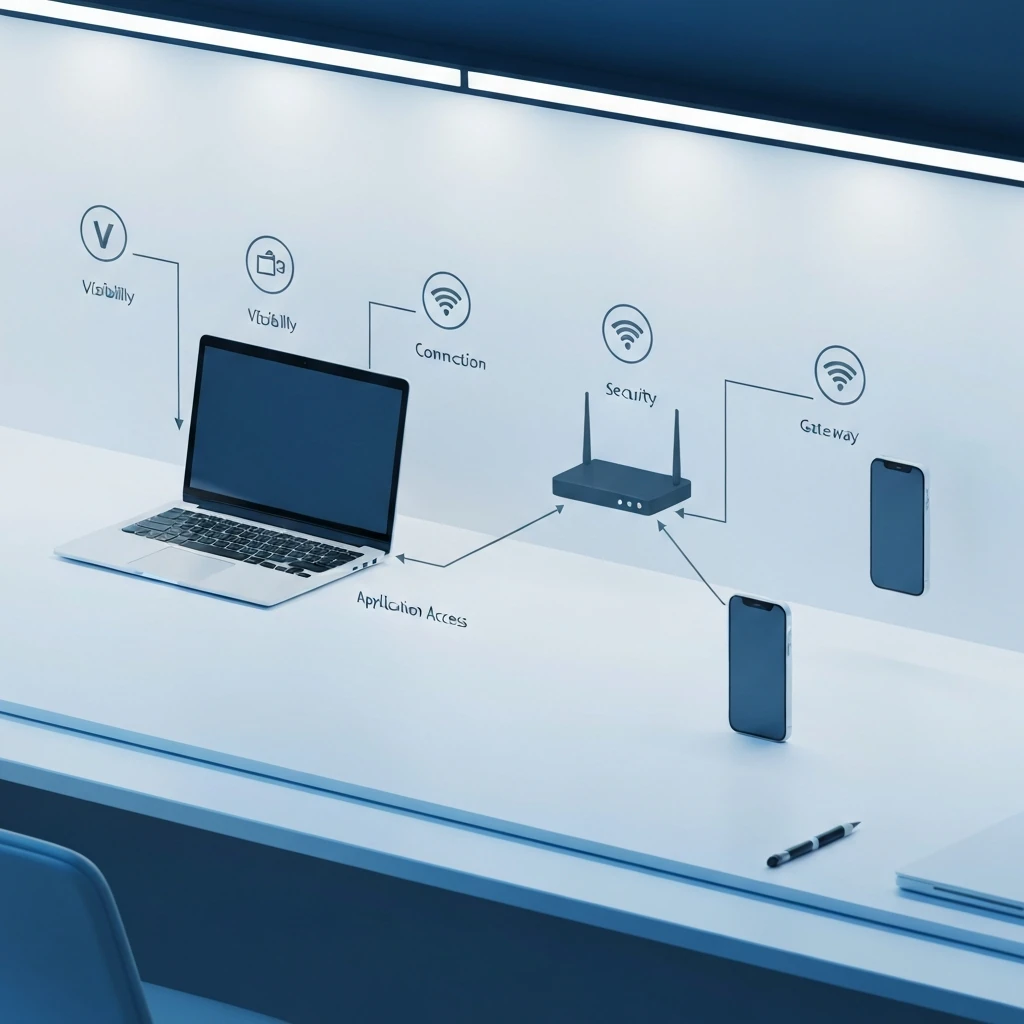
Wireless troubleshooting on CompTIA Network+ N10-008 is really about identifying where the connection process fails. A user says, “Wi-Fi is down,” but that could mean the client cannot see the SSID, cannot complete security, cannot get an IP address, cannot reach the gateway, cannot resolve DNS, or is connected but suffering from poor RF quality. The fastest way to solve wireless problems, and the fastest way to answer exam questions, is to map the symptom to the connection stage instead of guessing.
Wireless Connection Failure Map
Memorize this sequence: See → Join → Auth → IP → Gateway → DNS → App. That chain is the core of wireless troubleshooting.
Discovery: SSID not visible. Honestly, I’d start with the usual suspects: maybe the client’s just too far away, maybe the AP radio got turned off, maybe the SSID’s hidden, maybe the device doesn’t even support that band, maybe DFS is kicking the channel around, or maybe the client adapter itself is disabled. It’s basic stuff, sure, but this is where a lot of wireless issues really start. Best validation is to check whether other clients see it and verify adapter status, band support, and AP radio status. From there, the next move’s usually pretty simple: turn the radio or adapter back on, move the client closer to the AP, verify the band and SSID settings, and if the network’s using DFS channels, take a hard look at the channel plan. That’s usually the fastest way to separate a real problem from a coverage issue.
Association: The client sees the SSID but cannot join. Likely causes include profile corruption, incompatible security settings, unsupported cipher or AKM, or a PMF mismatch. Best validation is to remove and recreate the profile and compare client security settings to WLAN settings. In most cases, the fix is either to clean up the saved wireless profile or make sure the client’s security settings actually match what the SSID is configured for. Honestly, that fixes it more often than people expect.
Authentication and key establishment: Repeated password prompts or enterprise login failure usually point to a wrong PSK, bad credentials, a RADIUS outage, an expired certificate, incorrect system time, or a WPA3 transition issue. The way I usually check that is by looking at the AP or controller logs, confirming the client’s supplicant settings, and making sure the RADIUS server can actually be reached. That usually narrows things down pretty quickly, and that’s the big win — you can tell whether you’re dealing with a client problem or something farther upstream in the network. In practice, I usually end up finding one of four things: the username or password’s wrong, there’s a certificate or time problem, RADIUS is down or unreachable, or the WPA mode just isn’t lining up with what the client can handle. Honestly, it’s usually one of those before anything exotic.
IP addressing: The client is connected but has a 169.254.x.x address or no usable IP. At that point, I’d start looking at DHCP first, then the scope, then VLANs, then the relay or IP helper config, and finally the trunk between the AP and the switch. That’s where the wheels usually fall off. So yeah, even though it sounds like a Wi-Fi problem, the real issue is often on the wired side. Best validation is to use ipconfig /all or an equivalent command and verify the DHCP path and VLAN mapping. Likely fixes include restoring DHCP and correcting the VLAN, trunk, or relay path.
Local network: The client has an IP but cannot reach the gateway. Likely causes include the wrong subnet, an AP uplink issue, an ACL, or a switching problem. Best validation is to ping the default gateway and inspect the AP uplink and switchport. Likely fixes include correcting the local routing or switching path.
Name resolution: The client can reach IP addresses but not hostnames. That usually means DNS is the problem, or DHCP handed out the wrong DNS server, or a split-DNS setup isn’t behaving the way it should. Basically, the network path is there, but the translation from names to IP addresses is what’s broken. Best validation is to use nslookup or dig. Likely fixes include correcting DNS settings or restoring DNS service.
Application or internet access: The client is connected but still shows “no internet” or the application fails. Likely causes include a WAN outage, NAT or firewall issues, an incomplete captive portal process, or a proxy or VPN issue. Best validation is to ping a known external IP address, test browser or portal behavior, and trace the path. Likely fixes include restoring the upstream path, completing portal authorization, or correcting policy settings.
Exam rule: if the client cannot even see the SSID, eliminate DHCP, DNS, and gateway answers immediately.
Connection Stages with Just Enough Protocol Detail
At discovery, APs advertise networks with beacons, and clients can also send probe requests. If the client never sees the SSID, I’d keep my focus on visibility, range, channel choice, band support, and the overall RF environment. No need to jump straight to advanced causes when the network may just not be audible to the client. And just to say it plainly, hidden SSIDs really don’t buy you meaningful security. They usually make connectivity and roaming a little more annoying instead, which is a pretty poor tradeoff in my book.
After discovery comes joining the WLAN. In modern wireless, a client may complete basic 802.11 discovery and association, but that does not mean it has full data access. With WPA2 or WPA3 Personal, the client proves knowledge of the shared key material and completes the 4-way handshake. With WPA2 or WPA3 Enterprise, the client typically uses 802.1X/EAP through the AP to a RADIUS server. A client can join the Wi-Fi without any obvious problem and still fail later at the PSK handshake, the 802.1X authentication step, DHCP, or even the captive portal authorization process. That’s why I always tell people not to stop at “connected.”
Then comes IP assignment through DHCP DORA: Discover, Offer, Request, Acknowledge. If that process fails, many IPv4 clients self-assign a link-local address in 169.254.0.0/16. That’s a really useful clue, because it tells you the problem is in IP assignment or lease usability somewhere along the way — not automatically that the DHCP server is completely dead.
Finally, the client must reach the gateway, resolve DNS, and access the intended application. A captive portal can interrupt this after Layer 2 and Layer 3 are already working, which is why “connected” does not always mean “authorized for normal access.”
Wireless Basics That Actually Matter When You’re Troubleshooting
SSID is the network name users choose. BSSID is the MAC address identifying a specific basic service set or interface. An ESS is multiple APs presenting the same SSID so clients can roam.
For bands, keep it simple:
- 2.4 GHz: longer reach, more interference, fewer clean channels.
- 5 GHz: usually cleaner, more channels, shorter effective reach in many environments.
- 6 GHz: Wi-Fi 6E only; requires AP, client, operating system or driver, and regulatory support. Older 802.11a, 802.11n, and 802.11ac clients can’t use 6 GHz at all, so they’re never going to connect there no matter how many times someone clicks the Wi-Fi icon like that’ll somehow help.
For Network+, the common 2.4 GHz answer is channels 1, 6, and 11 in North America. Regulatory domains vary, but that is the exam-friendly guidance.
Channel width matters too. Wider channels like 40, 80, or 160 MHz can look fantastic on paper, but they use more spectrum and often do worse once the air gets crowded. With Wi-Fi, bigger really isn’t always better. In a busy office, 20 MHz or 40 MHz often works better than wider channels because there’s less contention and less fighting over airtime. That’s one of those boring answers that turns out to be the right one.
DFS channels in 5 GHz can be vacated when radar is detected. That can look like SSIDs disappearing, clients roaming unexpectedly, or intermittent drops. Some clients also handle DFS support poorly.
RF quality beats raw signal bars. Rough guidance: around -67 dBm is often considered good for voice and solid enterprise use, while weaker than -75 dBm is often problematic. SNR of 25 dB or higher is generally good, 15 to 24 dB is usable, and lower values often lead to retries and instability. Of course, those numbers aren’t magic. The real threshold depends on the design and on what the application actually needs to do.
CompTIA Troubleshooting Methodology, Correctly Applied
Network+ expects the full process:
- Identify the problem
- Establish a theory of probable cause
- Test the theory to determine cause
- Establish a plan of action to resolve the problem and identify potential effects
- Implement the solution or escalate as necessary
- Make sure everything works end to end, and if there’s a chance to stop the issue from coming back later, take it. That little extra step can save you from a mountain of repeat tickets later.
- Then document what you found, what you changed, how it ended up, and anything useful you learned for next time. That kind of note pays off more than people realize. Future-you will absolutely appreciate it.
On wireless tickets, first narrow scope: one user means check the client first; one area means check the AP or RF conditions first; one SSID means check configuration first; everyone means check a shared service or upstream dependency first.
Troubleshooting by Symptom
Cannot see the SSID: check whether the wireless adapter is enabled, airplane mode is off, the client supports the band, and the AP radio is actually broadcasting. After that, I’d look at hidden SSID behavior, DFS events, coverage gaps, attenuation, regulatory domain mismatches, and those newer 6 GHz-only setups that older clients just can’t join. Sometimes the network’s fine — the device just isn’t built for what’s being advertised.
Sees SSID but cannot connect: think security mismatch before DHCP. The common causes here are a wrong PSK, a WPA2 or WPA3 mismatch, an enterprise-versus-personal mismatch, an unsupported cipher or AKM, a PMF or 802.11w requirement mismatch, MAC filtering, private or randomized MAC conflicts, or just a corrupted saved profile. If the device keeps asking for credentials over and over, that usually points to an authentication problem, not an addressing problem. I’d keep DHCP out of the conversation until the security side checks out.
Connected but no IP: this is classic DHCP and VLAN territory. Look for APIPA. Next, I’d look for DHCP scope exhaustion, off-subnet relay or IP helper problems, SSID-to-VLAN mapping mistakes, controller tunneling or anchoring issues, and whether the AP uplink trunk is actually passing the right VLANs. A lot of people blame Wi-Fi here when the real issue is on the switch side. If multiple users on the same SSID are showing up with 169.254.x.x addresses, I’d suspect the infrastructure first, not a pile of random client problems. When the same symptom hits multiple devices, that’s usually a shared failure.
Has IP but no internet: separate gateway, DNS, and upstream issues. Ping the gateway first. If that works, test a known external IP address as a basic exam-style check. If IP reachability works but names fail, it is DNS. In production, remember ICMP may be filtered, so nslookup, browser tests, or application-specific checks may be more reliable.
Intermittent drops: think RF patterns, roaming, and client behavior. Roaming is primarily client-driven. Sticky clients may hold onto a distant AP too long. If AP coverage overlaps too little, you get dead zones. If the coverage overlaps too much, you can still create roaming headaches because clients start making bad choices about which AP to stick with. So yeah, too much overlap can be almost as annoying as not having enough. Fast-roaming features such as 802.11r, plus 802.11k and 802.11v assistance, can help, but misconfiguration or unsupported clients can also cause failures.
Slow throughput or high latency: this is often an airtime problem, not just a signal problem. I’d check SNR, retry rate, channel utilization, how many clients are hanging off each radio, low basic rates, airtime eaten up by legacy clients, over-aggressive band steering, and whether the uplink is the real bottleneck. Older or slower clients don’t automatically drag down the whole WLAN just by being present, but low data rates and protection mechanisms can chew up airtime and make everything feel slower.
2.4 2.4 GHz vs 5 GHz vs 6 GHz Troubleshooting
2.4 GHz: strength is better penetration. The usual troublemakers are congestion, Bluetooth interference, microwave ovens, Zigbee traffic, and overlapping channels. Wi-Fi has to share the air, and the air doesn’t care how urgent the ticket is. For exam purposes, keep channels 1, 6, and 11 in mind, along with the general idea of interference and channel overlap.
5 GHz: strength is more capacity and usually cleaner operation. Common problems include shorter reach, DFS events, and channel planning issues. For exam relevance, think performance and DFS behavior.
6 GHz: strength is cleaner spectrum for modern clients. Common problems include compatibility, shorter reach, and support requirements. For exam relevance, think Wi-Fi 6E client support.
802.1X / Enterprise WLAN Troubleshooting
In enterprise wireless, the client is the supplicant, the AP or controller is the authenticator, and the RADIUS server is the authentication server. Things can fail because the server can’t be reached, the RADIUS shared secret is wrong, the user account is disabled, the EAP type doesn’t match, or the certificate chain isn’t valid. Any one of those can stop the whole login flow cold.
PEAP usually relies on server certificate trust plus user credentials. EAP-TLS requires client certificates and is especially sensitive to expired certificates, a missing trusted certificate authority, wrong EKU, hostname mismatch, revocation checks, and incorrect system time. If enterprise Wi-Fi suddenly fails for many users after a time change or certificate renewal, certificate validation should be near the top of your list.
Also remember dynamic VLAN assignment. A user may authenticate successfully but land in the wrong VLAN because of RADIUS policy, creating what looks like a DHCP or access problem.
Controller and AP Uplink Troubleshooting
A lot of “wireless” failures live on the wired side. Check AP power, uplink, and controller reachability. Insufficient PoE can cause partial AP operation, disabled radios, reduced transmit power, or unstable behavior. On the switch side, I’d verify trunk mode, allowed VLANs, native VLAN expectations, interface errors, drops, and whether DHCP relay is actually reachable.
In controller-based designs, also verify AP join status and CAPWAP or controller communication. It also matters whether client traffic is centrally tunneled or locally switched, because that changes where DHCP, ACL, and routing issues will show up. Same symptom, different path.
For example, an AP might use a management VLAN for itself, while guest SSID traffic goes to VLAN 30 and corporate SSID traffic goes to VLAN 20. That split is normal — until somebody breaks it. If VLAN 30 isn’t allowed on the uplink trunk, guests might connect to the SSID just fine and still never get DHCP. And of course they’ll tell you “the Wi-Fi is down,” because that’s what everyone says first.
Captive Portal and Guest Access Failures
Captive portals often fail in ways that look like internet outages. The client may get Wi-Fi, get an IP, and still be blocked until portal authorization completes. Portal redirection usually depends on DNS, pre-auth ACLs, and the device actually attempting web traffic that can be redirected.
HTTPS, HSTS, VPN clients, private DNS or encrypted DNS features, and mobile captive network assistant behavior can prevent the portal from appearing correctly. A practical fix is sometimes as simple as opening a plain HTTP page to trigger redirection. Guest isolation can also block access to internal resources by design, so make sure the “problem” is not simply intended policy.
Tools and Commands I Rely On Most
WLAN scanner or analyzer: used to see SSIDs, channels, RSSI, overlap, BSSID, and basic 802.11 visibility.
Spectrum analyzer: used to see RF energy, including non-802.11 interference.
ipconfig /all: used to check IP address, gateway, DNS, DHCP, and APIPA status.
netsh wlan show interfaces: shows Windows SSID, BSSID, radio type, signal, and rates.
netsh wlan show profiles: shows saved Windows WLAN profiles.
ping, tracert, and nslookup: used for gateway, upstream, and DNS testing.
nmcli, iw, and ip addr: used for Linux wireless status and addressing.
networksetup and ifconfig: used for macOS interface and profile checks.
AP or controller logs: useful for association failures, deauthentication reasons, DHCP timeouts, and roaming events.
Useful patterns to recognize: APIPA means a DHCP path problem; gateway reachable but hostname fails means a DNS issue; the same SSID with a different BSSID during movement indicates a roaming event.
Common Log and Failure Patterns
The usual evidence I look for includes authentication failures, 4-way handshake timeouts, deauthentication or disassociation events, DHCP timeouts, and repeated roam attempts. If the logs show a bunch of clients failing on the same SSID at the same time, I stop thinking individual devices and start thinking shared infrastructure or policy. If one client repeatedly deauthenticates while others remain stable, think driver, supplicant, power-save, or profile issues.
Compact Scenarios for Exam Prep
Repeated password prompts on one laptop: likely wrong PSK, bad saved profile, or WPA mismatch. My first step would be to verify the security mode and then delete and recreate the wireless profile.
Users on guest SSID get 169.254.x.x: likely DHCP, VLAN, trunk, or relay issue. My first step would be to confirm the APIPA address, then check the SSID-to-VLAN mapping and make sure the uplink is allowing the right VLANs.
Client can ping a known external IP address but not a hostname: DNS issue. First step: run nslookup.
Drops happen while walking between conference rooms: roaming issue, sticky client, or bad overlap. First step: verify BSSID change and review roam or deauthentication events.
Lunch-hour slowdowns in one area: likely interference or airtime congestion. First step: compare RF conditions and retry rates at that time and location.
Security Hardening and Troubleshooting Interactions
WPA3 improves security but introduces compatibility considerations. Transition mode can create mixed-client issues. PMF or 802.11w requirements may break older clients. MAC filtering is weak security and mainly administrative; private or randomized MAC addresses can interfere with it. Be aware of rogue AP and evil twin risks when users report connecting to “the right network” but behavior looks wrong.
Final Exam-Cram Summary
- No SSID visible: radio, range, band, DFS, hidden SSID, adapter
- SSID visible but no join: profile, passphrase, WPA mode, PMF, cipher, MAC filtering
- Connected but APIPA: DHCP, scope, VLAN, trunk, relay
- Has IP but no internet: gateway, DNS, captive portal, NAT, firewall, WAN
- Intermittent: RF interference, roaming, sticky client, DFS, driver, power-save
- Slow: SNR, retries, channel utilization, client density, basic rates, uplink bottleneck
Best memory aid: See → Join → Auth → IP → Gateway → DNS → App.
Best elimination strategy: identify the earliest failed stage and eliminate answers from later stages. That is exactly how many Network+ wireless questions are designed.
Best troubleshooting mindset: use the smallest test that proves the theory, fix the smallest thing that restores service, then verify the full path. That approach works on the exam and in the real world.