
How to Deploy and Configure Multifunction Devices and Printers for CompTIA A+ Core 1 (220-1101)
1. Introduction: Why Printer Deployment Still Matters on A+
On CompTIA A+ Core 1, printers are not trivia. They are scenario devices. Honestly, that’s what the exam is getting at: if you’re handed a business need, can you pick the right printer or MFP, hook it up the right way, set the features the job actually needs, lock it down, and sort out the usual problems when something goes sideways? And that’s basically the day-to-day work of an entry-level support tech in a real environment.
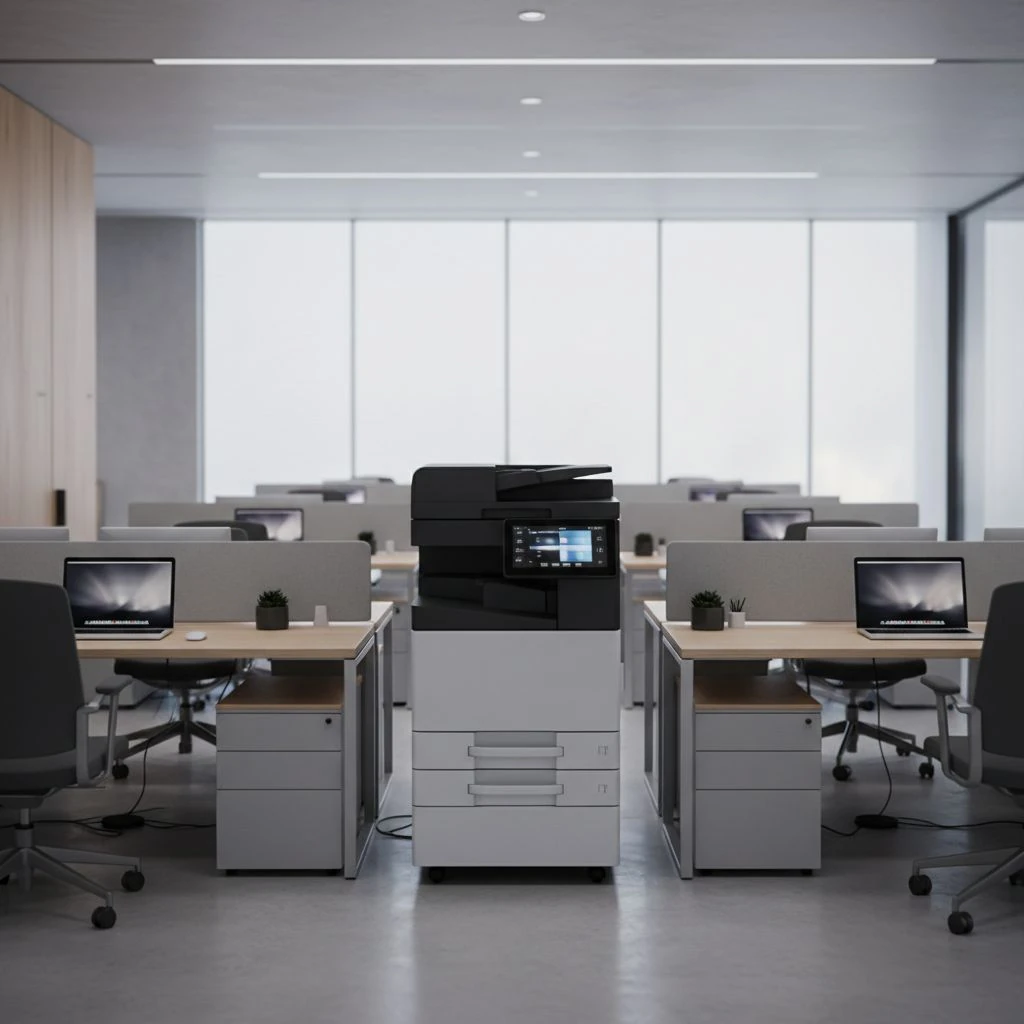
Printers are also more than output devices. They are network endpoints, workflow tools, and sometimes security risks. A front-desk MFP may print, scan, copy, and fax. A warehouse label printer may be tied to a shipping platform. An HR printer may require secure release so sensitive documents do not sit in the tray. If you think about printers in terms of workflow, the A+ questions get much easier.
2. Choosing the Right Printer for the Job
I always tell people to start with what the user actually needs, not just whatever brand name happens to be on the box. You want to match the device to the print volume, the type of media it’ll use, whether color really matters, and which features the job actually calls for.
Printer Type: Laser
Best Fit: High-volume office documents
Key Notes: Typically fast and lower cost per page for business text printing
Printer Type: Color Laser
Best Fit: Office color documents
Key Notes: Often better than inkjet for frequent business color output
Printer Type: Inkjet
Best Fit: Low-volume color or photo printing
Key Notes: Good photo quality, but ink can dry out if rarely used
Printer Type: Thermal
Best Fit: Receipts and labels
Key Notes: Direct thermal uses heat-sensitive media; thermal transfer uses ribbon for more durable labels
Printer Type: Impact / Dot-matrix
Best Fit: Multipart forms, legacy industrial use
Key Notes: Uses ribbon, print head pins, and often tractor feed paper
Printer Type: MFP
Best Fit: Print/scan/copy/fax workflows
Key Notes: Best for front desk, HR, admin, and small teams
Printer Type: 3D Printer
Best Fit: Awareness-level for A+
Key Notes: Know terms like filament, resin, build plate, FDM, and SLA
Also consider duty cycle and recommended monthly volume. A cheap home printer might technically survive 5,000 pages in a month, but that doesn’t mean it was built to do it reliably without complaints. For the exam, if you see high volume, shared use, or anything business-critical, your brain should jump to a business-class laser or MFP, not a consumer inkjet.
3. A+ Printer Technologies You Must Know
Laser printers use toner, a drum, a transfer roller or belt, and a fuser. Toner’s a powder, not liquid ink, and honestly, that difference matters a lot more than people realize. The drum builds the image, the toner gets moved onto the paper, and the fuser basically seals it all on there with heat and pressure. One of the nice things about working on lasers is that the symptoms often point you in the right direction: streaks can mean drum trouble, smearing can point to the fuser, and paper feed problems are often tied to pickup rollers or separation pads.
Inkjet printers spray liquid ink through a print head. They’re solid for photos and light color printing, but clogged nozzles and dried-out ink are super common if the printer doesn’t get used often. Print-head cleaning and alignment are two of those regular maintenance tasks you end up doing more often than people expect.
Thermal printers either use direct thermal media that darkens with heat or thermal transfer media that uses ribbon. Direct thermal is really common for receipts and basic labels, but the print can fade faster than people expect if it’s left in heat or bright sunlight. Thermal transfer is usually the better pick when the labels need to survive warehouses, shipping stations, or any other rough environment.
Impact printers, usually dot-matrix, strike an inked ribbon against paper with pins. They’re noisy, slow, and definitely old-school, but honestly, they still do a great job with multipart forms and carbon-copy paperwork. That is why they still appear in some industrial and legacy environments.
4. Plan the Deployment
A good deployment is the one that stays stable, doesn’t create a bunch of support calls, and fits the environment it’s going into. When I’m planning a deployment, I usually start with a few simple questions that help me figure out what the device actually needs to do:
- Single user or shared team?
- High volume or occasional use?
- What kind of media are we really dealing with here—plain paper, labels, envelopes, legal-size sheets, cardstock, or multipart forms?
- Is this just a printer, or does it also need scan, copy, and fax features too?
- Do they need secure print, badge release, or PIN release?
- Are scan-to-email, scan-to-folder, or mobile printing part of the actual workflow?
- And, honestly, where are we getting power, Ethernet, and practical physical access from?
In a managed environment, a direct network printer or a queue published from a dedicated print server is usually the better move than sharing a USB printer off some user’s workstation. PC-hosted sharing can work, sure, but it only behaves if that host computer stays on and stays healthy.
5. Install and Connect the Device
During setup, get all the shipping materials out, install the toner or ink, load the right media, and make sure the printer powers up cleanly. And paper choice actually matters more than people think. With a laser printer, using the wrong media can mess with fuser temperature, wreck print quality, and cause a bunch of paper jams.
Know the connection options:
- USB: Best for one user at one PC.
- Ethernet: Best default for shared office reliability.
- Wi-Fi: Useful when cabling is impractical, but less predictable than wired.
- Wi-Fi Direct: Direct device-to-device printing without normal infrastructure.
- Bluetooth: Limited in offices, but common on some mobile receipt and label printers.
- Print server queue: Centralized management for larger environments.
For wireless printers, I’d stick with WPA2 or WPA3, avoid open networks and WEP, and turn off WPS if you’ve got the option. Guest Wi-Fi is a classic exam trap too. The printer might connect just fine, but nobody on the internal network can actually reach it.
6. Configure Network Settings and Print Paths
At the end of the day, printers are really just TCP/IP devices with paper attached. They need a valid IP address, the right subnet, and usually DNS and gateway settings as well. A lot of them support both IPv4 and IPv6 now, which is great, but yeah, it can make troubleshooting a little more interesting too. For shared printers, I usually like a DHCP reservation better than manually setting a static IP because it keeps things centralized and helps prevent duplicate-IP mistakes. Either approach can work, but in my experience, reservations are usually much easier to support long term.
A practical setup workflow usually goes something like this:
- First, make sure it’s sitting on the right VLAN or subnet.
- Assign or reserve an IP address so you’re not chasing a changing printer address later.
- Set hostname and DNS if needed
- Set gateway if clients or services are on other networks
- Verify secure web management access to the embedded administration interface
- Disable unused services
- Set time/date or network time synchronization if the device supports it
Protocol: IPP
Common Port: TCP 631
Use: Standard network printing
Exam Note: Modern and common
Protocol: IPPS
Common Port: TCP 631 over TLS
Use: Secure IPP
Exam Note: Prefer when encryption matters
Protocol: RAW / JetDirect / AppSocket
Common Port: TCP 9100
Use: Direct print path
Exam Note: Very common on business printers
Protocol: LPR/LPD
Common Port: TCP 515
Use: Older print method
Exam Note: Still appears in mixed environments
Protocol: SMB
Common Port: TCP 445
Use: Shared printing or scan-to-folder
Exam Note: Use SMB as the modern term
Protocol: SNMP
Common Port: UDP 161/162
Use: Status and monitoring
Exam Note: Prefer SNMPv3 if supported
Discovery may also use Bonjour, multicast DNS, or Web Services for Devices. Web Services for Devices can be convenient, but it is also a common cause of duplicate printers or offline confusion. In business deployments, a Standard TCP/IP port is often more predictable than a Web Services for Devices port.
7. Install the Driver and Add the Printer in Windows
Driver choice matters a lot because the wrong one might let you print just enough to fool you, while still hiding trays, duplexing, stapling, hole punching, mailbox trays, accounting codes, or scan features. Use the manufacturer full-feature driver when you need all device functions. Universal drivers help standardization. Generic drivers are last resort.
Print languages matter too:
- PCL: Common in office environments and often faster for general business output.
- PostScript: Often preferred for graphics and publishing consistency.
- XPS: Awareness-level for A+; may appear in Windows environments.
On Windows, a reliable method is: Add Printer > Add manually > Add a printer using a TCP/IP address or hostname. Enter the IP, select a Standard TCP/IP Port, install the correct driver, then print a test page. If the device is shared from a print server, connect to the published queue instead.
Remember that MFP scanning may not come from the print driver alone. Scan support can be a little different, because it may need separate vendor software, TWAIN or WIA support, or settings that have to be configured right on the device itself.
8. Configuring the Print, Scan, Copy, and Fax Features — this is where the device starts matching the real workflow.
For print settings, I’d check duplex, orientation, tray mapping, paper size, media type, color defaults, and resolution so the printer behaves the way users expect it to. Higher DPI can improve print quality, but it also makes the spool file bigger and can slow things down a bit because it uses more memory and processing power. Duplexing isn’t always automatic either. Some printers only support manual duplex.
Scan-to-folder typically requires an SMB share, stored credentials, correct share permissions, and correct NTFS permissions. A typical destination is a shared network folder on a file server for scanned documents. If users say printing works but scanning fails, think permissions, bad credentials, unsupported SMB version, or wrong path. Do not enable SMB1 unless absolutely required and approved.
Scan-to-email usually requires SMTP server settings, DNS resolution, correct time/date, port and TLS settings, and authentication. Some modern mail platforms may require relay permissions, app passwords, or vendor-supported alternatives because older devices do not handle modern authentication methods well.
Fax usually requires an analog phone line and an RJ-11 connection. Some devices can use internet-based fax services too, but that gets vendor-specific pretty quickly. For A+, if the scenario says traditional fax, think analog line.
Secure print may also be called hold/release printing, pull printing, PIN printing, or badge release. It is the right choice for HR, finance, legal, and healthcare environments.
9. Print Server vs Direct-to-Printer Deployment
Direct IP printing is simple and common for small offices. A print server is better when you need centralized queues, shared drivers, easier deployment, and better control. In Windows environments, print servers can publish queues and deploy them through management tools or Group Policy. That is different from sharing a printer from a user PC, which is much less reliable.
10. Security Hardening for Printers and MFPs
Printers store data, credentials, logs, and address books. Some enterprise MFPs also have internal storage. Treat them like endpoints.
- Change default admin credentials immediately
- Enable secure web management and disable insecure web access if possible
- Prefer IPPS for secure printing
- Turn off anything you don’t need, like Telnet, FTP, or wireless features that aren’t actually being used.
- Use WPA2 or WPA3 for wireless connections whenever you can—it’s just the safer move.
- Disable WPS
- Change default SNMP community strings or prefer SNMPv3
- Restrict admin access by role or IP if supported
- Put the device in the right network segment or VLAN so it ends up where it actually belongs.
- And keep in mind that some devices also support things like 802.1X, LDAP or AD integration, centralized logging, and audit logging, depending on the model you’re working with.
Before you push a firmware update, check the release notes, back up or export the configuration if the device supports it, and do it during a maintenance window if you can. Before disposal or reassignment, factory reset the device, clear out stored jobs and address books, and handle any internal storage securely.
11. Testing, Documenting, and Keeping the Device Healthy — honestly, this is the part that saves you later.
After deployment, test the exact workflows users need:
- Print test page
- Test real document output
- Test scan-to-folder or scan-to-email
- Test copy and fax if applicable
- Verify access from the correct client subnet
- Confirm secure print if required
Make sure you document the model, serial number, hostname, IP address, location, driver, queue name, scan settings, admin access process, and any DHCP reservation tied to it. Good names help: HQ-FrontDesk-MFP-01 is far better than Printer1.
And yeah, the maintenance basics still matter a lot. Toner goes in laser printers, while ink is what you’d use in an inkjet. Drums may be separate or integrated with toner. Common wear items include fusers, transfer belts, rollers, separation pads, and full maintenance kits. Inkjets may need print-head cleaning, and color lasers often need calibration from time to time.
12. Troubleshooting Based on What You’re Seeing
Symptom: Printer shows offline
Likely Cause: Wrong port, stale Web Services for Devices port, IP change, SNMP status mismatch
First Checks: Check IP, port type, queue properties, and access to the printer management interface
Symptom: Jobs stuck in queue
Likely Cause: Print Spooler issue, corrupt job, port problem
First Checks: Restart Print Spooler, clear queue files, retest
Symptom: Can print but not scan
Likely Cause: Bad SMB/SMTP credentials, permissions, DNS, authentication failure
First Checks: Test destination path, update stored credentials, verify server settings
Symptom: Missing trays or duplex options
Likely Cause: Wrong driver
First Checks: Install manufacturer driver or correct model-specific package
Symptom: Gibberish output
Likely Cause: Wrong print language or driver mismatch
First Checks: Check PCL vs PostScript vs generic driver
Symptom: Streaks, smudges, faded output
Likely Cause: Drum, fuser, toner, print head, or media issue
First Checks: Check consumables, run cleaning/calibration, inspect parts
Symptom: Frequent paper jams or multi-feed
Likely Cause: Worn rollers, wrong paper type, bad tray settings
First Checks: Inspect rollers, media, and tray configuration
Symptom: Mobile devices cannot find printer
Likely Cause: Discovery protocol blocked or network segmentation issue
First Checks: Check same network, discovery protocols, and firewall rules
Useful tools include ping, nslookup, browser access to the printer management page, and Test-NetConnection to ports like 9100, 631, or 445. But here’s the catch: a successful ping doesn’t prove printing works, and a failed ping doesn’t automatically mean the printer is dead.led ping doesn’t automatically mean the printer’s dead, because ICMP might be blocked.
13. Quick Practical Labs
Deploy a shared office laser by IP: reserve the IP in DHCP, access the printer through its secure management interface, change the admin password, disable unused services, add the printer in Windows using a Standard TCP/IP port, install the correct driver, print a test page, and document the queue.
Fix offline after IP change: open Printer Properties, check the port, replace the stale address or Web Services for Devices port with the correct Standard TCP/IP port, restart the queue, and retest.
Fix stuck jobs: stop the Print Spooler service, clear the queue files, start the service again, then resend a small test print.
14. A+ Rapid Review and Exam Traps
High-yield matches:
- High-volume office text = laser
- Office color documents = color laser
- Low-volume color/photo = inkjet
- Receipts = direct thermal
- Durable labels = often thermal transfer
- Multipart forms = impact/dot-matrix
- Print/scan/copy/fax = MFP
- Shared office reliability = Ethernet
- Confidential output = secure print / hold release
- Users can print but not scan = destination/auth/permissions issue
- Missing features = wrong driver
- Offline after address change = wrong port or stale queue config
Common distractors: Wi-Fi is convenient, but Ethernet is usually better for shared office printers. A printer that prints is not necessarily fully configured. Auto-discovery is easy, but manual IP-based deployment is often more reliable. And a guest-network printer is usually the wrong answer in a business scenario.
15. Final Takeaway
For A+ Core 1, think like a support technician: choose the right printer type, use the right connection, assign a stable network identity, install the right driver, configure the actual workflow, secure the device, and test every required function. If you can do that in a scenario, you are answering the question the way CompTIA wants.