
Core Solutions and Management Tools on Azure for AZ-900
Introduction: Core Solutions vs. Management Tools
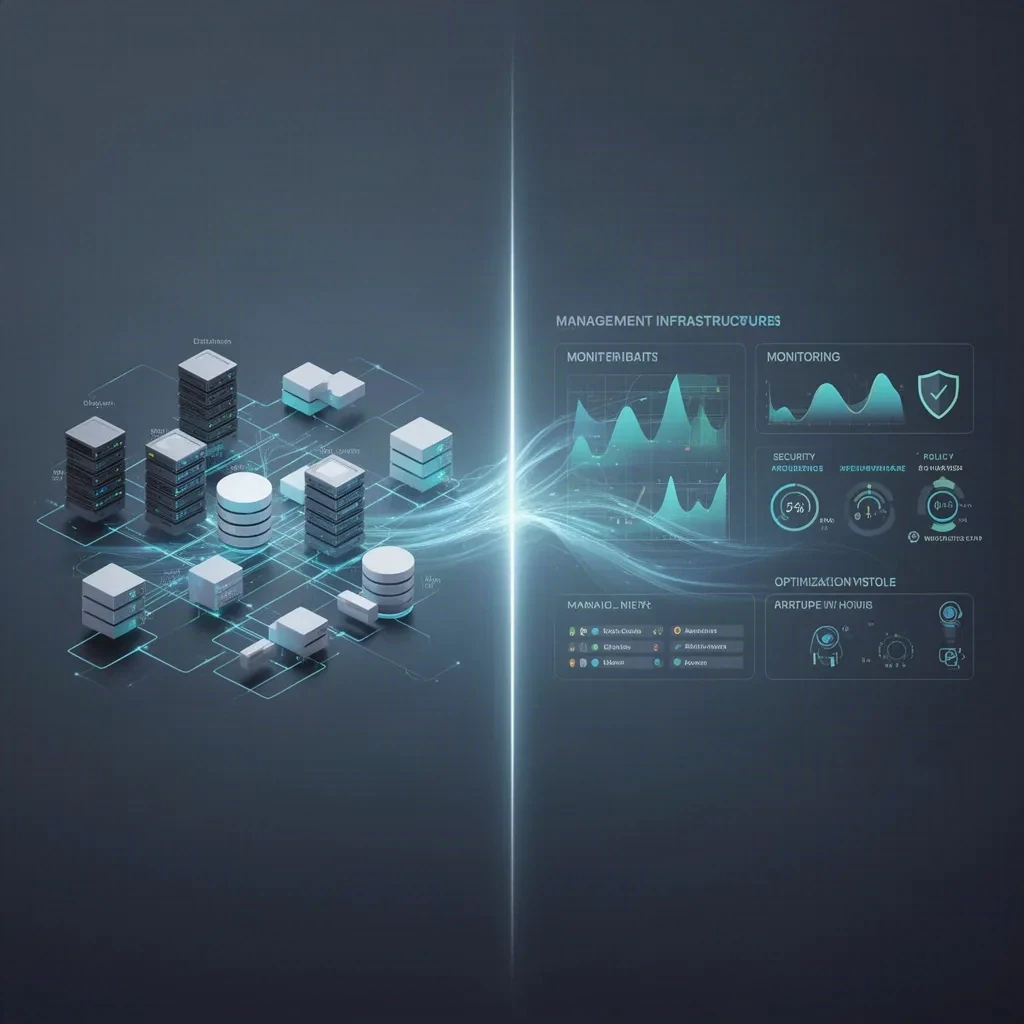
For AZ-900, here’s the cleanest mental split: core solutions are the stuff you run workloads on, while management tools are what you use to deploy, organize, secure, watch, and tune those workloads. If the question is about hosting an app, storing data, or connecting systems, you’re probably in core-solution land. If it’s about permissions, policy, deployment, health, or cost control, you’re looking at management tools.
And that matters, because Azure is not just “servers in Microsoft’s datacenter.” That’s the tiny version, the postcard version. Azure’s a much bigger machine than that—managed services, governance controls, and several ways to poke at resources all piled together—so yeah, it’s completely normal to feel a bit swamped at first. AZ-900 stays mostly conceptual, so keep your eyes on what a service does, when you’d reach for it, and how it differs from the nearby thing that looks suspiciously similar.
Understanding Azure Core Solutions
Core solutions include compute, storage, databases, networking, and broader solution families such as AI, analytics, and IoT. The exam won’t ask you to build them from scratch, but it will absolutely expect you to spot the right service for the right job.
Compute services
Azure Virtual Machines are IaaS. You still carry the bag for the guest operating system, patching, app installs, and security settings like endpoint protection. That’s the deal with VMs: more control, more chores. They fit lift-and-shift migrations, legacy apps, custom server software, or anything that needs OS-level control.
Azure App Service is a PaaS offering for hosting web apps and APIs without babysitting the underlying web server. It supports web apps, API apps, scaling, custom domains, and deployment slots, which is part of why people warm up to it fast once they’ve used it a bit. Pretty handy when you want cleaner releases and far less deployment chaos. It’s often the better pick than a VM when you want to get a web app online quickly and avoid platform babysitting. App Service can integrate with VNets for some connectivity scenarios, but it isn’t placed into a customer VNet the way a VM is.
Azure Functions is event-driven serverless compute. Triggers can be HTTP requests, timers, blob events—you get the idea. It shows up a lot for automation, lightweight APIs, scheduled jobs, and file processing. For fundamentals, remember this part: Functions supports automatic scaling and multiple hosting options; it’s not just a simplistic “runs when needed” label slapped on it.
Azure Kubernetes Service (AKS) is a managed Kubernetes service for containerized applications. Azure handles the Kubernetes control plane, but you still deal with node pools, workloads, networking choices, container images, cluster configuration—the whole moving pile. So yes, managed. Nope, it’s definitely not hands-off. AKS is for container orchestration at scale, not simple web hosting.
Azure Virtual Desktop delivers virtual desktops and remote apps from Azure and commonly runs on session host VMs underneath. I tend to call it a desktop and app delivery service instead of plain compute, because that framing lands better for most people. Useful for remote work, contractors, centralized desktop delivery... that sort of thing.
| Service | Best fit | Not best fit |
|---|---|---|
| Virtual Machines | Legacy apps, full OS control, custom software | Minimal-admin web hosting |
| App Service | Web apps and APIs with reduced platform management | Apps needing full server control |
| Functions | Event-driven tasks, automation, short-lived processing | Traditional always-on server workloads |
| AKS | Containerized microservices and orchestration | Simple single-app hosting |
| Azure Virtual Desktop | Remote desktops and published apps | General-purpose app hosting |
Azure Storage account and data services overview
Azure storage isn’t one monolith. Different services solve different data problems, and the exam loves to see whether you can untangle them.
Blob Storage is object storage for unstructured data such as backups, images, logs, media, and documents. Azure Files gives you managed shared file storage over SMB and, where supported, NFS. Managed Disks are block storage for Azure VMs. Queue Storage handles message-based decoupling between application parts, and Table Storage stores large amounts of semi-structured NoSQL key-value data.
One correction that trips people up: hot, cool, and archive are blob access tiers, not universal storage tiers for everything in Azure. Archive is not just “slower”; it’s meant for offline-style retention and needs rehydration before normal use.
Storage accounts also bring redundancy choices into the mix. Broadly: LRS keeps copies inside one datacenter, ZRS spreads across availability zones in a region, GRS replicates to a secondary region, GZRS blends zone and geo redundancy, and RA-GRS lets you read from the secondary region. And here’s the important part: access tier and redundancy are two different decisions. One is about how often you’ll access the data and what it costs, and the other is about durability and resilience. Easy to blur, annoyingly.
| Need | Azure storage choice |
|---|---|
| Store backups, media, logs, documents | Blob Storage |
| Shared file share for users or apps | Azure Files |
| OS or data disk for a VM | Managed Disks |
| Decouple app components with messages | Queue Storage |
| Simple NoSQL key-value data | Table Storage |
Relational vs. non-relational database options
Azure SQL Database is a managed relational database service based on SQL Server technology. Because it’s PaaS, Azure handles a lot of the maintenance, backups, and availability work behind the curtain. Azure SQL Managed Instance is also managed, but gives you higher SQL Server compatibility for migrations. SQL Server on Azure VM gives you maximum control, but you’re on the hook for much more. Azure Cosmos DB is a globally distributed NoSQL database service for apps that need flexible data models and low-latency global access.
| Service | Use it when |
|---|---|
| Azure SQL Database | You want a managed relational database for modern apps |
| Azure SQL Managed Instance | You need more SQL Server compatibility during migration |
| SQL Server on Azure VM | You need full OS and SQL Server control |
| Azure Cosmos DB | You need NoSQL and global distribution |
For security and connectivity, keep this in mind: managed databases still need choices around authentication, firewall rules, and sometimes private access. Managed doesn’t mean responsibility-free; it just shifts the pile around.
Core Azure networking services for AZ-900
Networking is the web of roads that connects Azure resources. A Virtual Network (VNet) is a logically isolated network in Azure. A subnet breaks that VNet into smaller segments, like web, app, and data tiers. An NSG (Network Security Group) filters traffic with allow and deny rules.
For hybrid connectivity, VPN Gateway connects Azure to on-premises networks over the public internet using encryption, while ExpressRoute gives private dedicated connectivity and is usually chosen when organizations want steadier performance and don’t want traffic wandering across the public internet.
For traffic distribution, Azure Load Balancer works at the network layer, while Application Gateway is a web traffic load balancer with things like layer 7 routing and web application firewall integration. Azure DNS hosts DNS zones, and private endpoints let you reach supported Azure services privately instead of exposing them to the outside world.
A simple design might be a VNet with separate subnets for web, app, and data resources, NSGs controlling traffic between them, and a VPN Gateway back to the datacenter. Not fancy. Just solid.
AI, analytics, and IoT solution families
Azure also reaches into broader solution families. Azure AI Services and Azure Machine Learning support intelligent apps. Azure Synapse Analytics handles large-scale analytics and data warehousing. Azure IoT Hub helps connect and manage IoT devices. For AZ-900, the main thing is simply knowing Azure stretches way beyond compute and storage.
Azure Management Tools and Deployment Interfaces
Management tools are how you talk to Azure. The main interfaces are Azure portal, Azure CLI, Azure PowerShell, Azure Cloud Shell, ARM templates, Bicep, and, at a broad level, the Azure mobile app. These tools usually use Azure Resource Manager as the steady management layer for control-plane operations.
| Tool | What it is best for |
|---|---|
| Azure portal | Browser-based GUI, visual discovery, one-off tasks |
| Azure CLI | Cross-platform command-line automation |
| Azure PowerShell | PowerShell-based Azure administration and scripting |
| Azure Cloud Shell | Browser shell with CLI and PowerShell, no local install |
| ARM templates / Bicep | Declarative infrastructure as code |
| Azure mobile app | Basic monitoring and management on the go |
Control plane vs. data plane
This one’s worth locking in. The control plane is for creating, updating, organizing, and deleting Azure resources. Azure Resource Manager lives there. The data plane is for working with the actual data inside a service, like reading blobs from a storage account. So yes, the portal, CLI, and PowerShell often go through ARM for resource management—but not every action you take is an ARM action. Small distinction, big exam favorite.
ARM templates and Bicep
ARM templates are JSON-based declarative deployment files. Bicep is the cleaner, more readable language that compiles to ARM. The big ideas are consistency, repeatability, idempotent deployments, parameterization, and fewer manual mistakes.
Mini-lab examples:
az group create --name DemoRG --location eastus
New-AzResourceGroup -Name DemoRG -Location EastUS
Both commands create a resource group through Azure’s management layer. A simple Bicep example looks like this:
param storageName stringparam location string = resourceGroup().locationresource storage 'Microsoft.Storage/storageAccounts@2023-05-01' = { name: storageName location: location sku: { name: 'Standard_LRS' } kind: 'StorageV2'}
You do not need to memorize syntax for AZ-900. Just keep the shape of the idea: Bicep and ARM templates are for repeatable deployments.
How Azure Resources Are Organized
The core hierarchy is Management Group → Subscription → Resource Group → Resource. Management groups gather subscriptions. Subscriptions are major billing boundaries, and they’re also common governance scopes. Resource groups are logical containers for related resources, which makes them a lot easier to manage as a single unit. Resources are the actual services like VMs, VNets, and storage accounts.
Tags are metadata such as Environment=Prod, Owner=FinanceApp, or CostCenter=1001. Tags help with organization, reporting, and chargeback or showback.
One nuance worth remembering: RBAC and Policy can be applied at multiple scopes, including management group, subscription, resource group, and resource. Governance doesn’t stop at the subscription border.
Identity, Security, and Governance Foundations
Microsoft Entra ID provides identity services for users, groups, applications, managed identities, and service principals. Azure RBAC answers who can do what. Azure Policy answers what is allowed, required, or audited. Resource locks protect important resources from accidental change.
For locks, know the two types: CanNotDelete stops deletion, and ReadOnly blocks modification. Locks can override what RBAC would otherwise allow, unless an authorized principal removes the lock. It’s a bit of a blunt instrument. Still useful.
Azure Policy supports effects such as deny, audit, append, and deployIfNotExists. Policies can be bundled into initiatives for broader governance. A common fundamentals example is requiring tags, restricting regions, or allowing only approved SKUs.
Microsoft Defender for Cloud adds security posture management and workload protection recommendations. It is not the same thing as RBAC or Policy, but it is very much part of the AZ-900 security story.
Other exam-relevant security concepts include MFA, Conditional Access, managed identities, and Azure Key Vault. A practical example: a web app can use a managed identity to reach Azure SQL or Key Vault without hard-coding credentials into the app. Nice and tidy.
Monitoring, Health, Cost, and Operational Tools
Azure Monitor is the main observability platform. It includes metrics, logs, alerts, dashboards, and integrates with Application Insights for application telemetry. Log Analytics stores and queries collected log data. Activity Log tracks control-plane actions such as resource creation, deletion, and configuration changes. Diagnostic settings send platform logs and metrics to destinations such as Log Analytics.
Small accuracy note: platform metrics like CPU are often available right away, but guest-level details such as VM memory may need extra setup, like VM Insights or agent-based collection.
Azure Advisor gives best-practice recommendations across cost, reliability, security, performance, and operational excellence. Azure Service Health gives personalized information about Azure service issues, planned maintenance, health advisories, and subscription or tenant impact. That’s different from the public service status view, which is the broad, everyone-can-see-it version.
Azure Cost Management + Billing helps track spending, analyze costs, create budgets, and review usage. At the fundamentals level, cost optimization includes using tags, setting budget alerts, checking Advisor recommendations, and understanding things like reserved capacity or savings plans.
| Tool | Main purpose |
|---|---|
| Azure Monitor | Metrics, logs, alerts, observability |
| Application Insights | Application performance and failure monitoring |
| Activity Log | Who changed what in Azure resource management |
| Azure Advisor | Optimization recommendations |
| Azure Service Health | Subscription-aware Azure service issues and maintenance |
| Azure Status | Broad public service status information |
| Cost Management + Billing | Cost analysis, budgets, billing visibility |
Hybrid and Multicloud Management with Azure Arc
Azure Arc extends Azure management and governance to supported non-Azure servers, Kubernetes clusters, and some data services. It does not move those resources into Azure, and it does not turn every outside resource into a perfect Azure clone. What it does give you is a more consistent way to inventory, govern, and apply selected Azure capabilities like policy and management to supported hybrid and multicloud resources.
Troubleshooting Azure Workloads: A Beginner Diagnostic Flow
Here’s a practical pattern that works well for AZ-900 questions and real life:
Cannot sign in? Check Entra ID, MFA, Conditional Access, and RBAC scope.
Deployment blocked? Check Azure Policy, RBAC permissions, quotas, and resource locks.
Resource deleted or changed unexpectedly? Check Activity Log and locks.
Application slow? Check Azure Monitor metrics, logs, alerts, and Application Insights. For VMs, remember guest memory may need extra monitoring configuration.
Users suspect a regional Azure issue? Check Azure Service Health first, then the broader public service status view for general confirmation.
Unexpected cost increase? Check Cost Management, tags, and Advisor recommendations.
Common AZ-900 Service Selection Scenarios
Legacy Windows app needing admin access? Azure Virtual Machines.
Public web app with minimal server management? Azure App Service.
Event-driven file processing after a blob upload? Azure Functions.
Containerized microservices? AKS.
Remote desktop access for contractors? Azure Virtual Desktop.
Shared SMB file share? Azure Files.
Backup/archive data? Blob Storage.
Require tags and restrict regions? Azure Policy.
Prevent accidental deletion? Resource lock.
Need to know if Azure itself has an outage? Azure Service Health.
AZ-900 Exam Distinctions and Cram Sheet
RBAC = who. Policy = rules. Locks = protection.
Monitor = your telemetry. Service Health = Azure’s issues affecting you. Advisor = recommendations.
Blob = object. Files = share. Disk = VM block storage.
Portal = browser GUI. Cloud Shell = browser shell. CLI/PowerShell = command-line management. Bicep/ARM = declarative deployment.
Azure Arc = manage supported hybrid resources, not migrate them into Azure.
What Microsoft likes to test here is service purpose, tool selection by scenario, governance distinctions, and the difference between hosting workloads and managing workloads. Don’t get dragged into deep Kubernetes internals, advanced routing, or log query syntax for this topic. Stay with roles, use cases, boundaries.
Conclusion
The simplest summary still wins: Azure core solutions run workloads, and Azure management tools deploy, organize, secure, monitor, govern, and optimize those workloads. If you can separate compute, storage, databases, and networking from tools like Portal, ARM, Policy, Monitor, Defender for Cloud, and Cost Management, the whole topic stops feeling so slippery.
For AZ-900, success comes from recognizing patterns: the right compute model, the right storage type, the right governance control, and the right operational tool. Learn what each service is for, the usual exam decoys around it, and the basic splits between look-alike options. That’s usually enough to handle both exam questions and real-world beginner Azure conversations without too much hand-wringing.