
CompTIA A+ Core 1: Compare and Contrast the Display Components of Mobile Devices
1. Introduction: Why Mobile Displays Matter in A+
In CompTIA A+ Core 1, mobile displays look simple until a user says, “My screen is broken,” and you realize that could mean cracked glass, dead touch, no image, a dim LCD backlight, burn-in on OLED, or a sensor/settings problem. The exam isn’t just throwing vocabulary at you. Basically, it wants you to compare the parts, understand what each one really does, and then line up the symptom with the layer that’s probably gone bad.
For A+ study, I’d say think like a support tech for a second: what’s still working, what isn’t, and what’s the safest next move? If you can tell cover glass, digitizer, display panel, backlight, connectors, and sensor behavior apart, you’ll troubleshoot a lot faster and won’t waste time swapping the wrong part.
2. A+ Objective Alignment: What You Must Know
The 220-1101 objective is really about compare-and-contrast skills. You should be able to identify the major parts of a mobile display, explain the difference between LCD and OLED families, distinguish touch failure from image failure, and recognize when a problem is caused by settings, sensors, impact, liquid, or a damaged assembly.
- Cover glass: protective outer layer
- Digitizer: detects touch input
- Display panel: creates the image
- Backlight: required for LCD, not used by OLED
- Flex cables/connectors: carry display and touch signals
- Ambient light sensor: affects auto-brightness
- Proximity sensor: can turn the screen off during calls
Memory aid: Glass protects, digitizer detects, panel presents.
3. How a Mobile Display Is Built
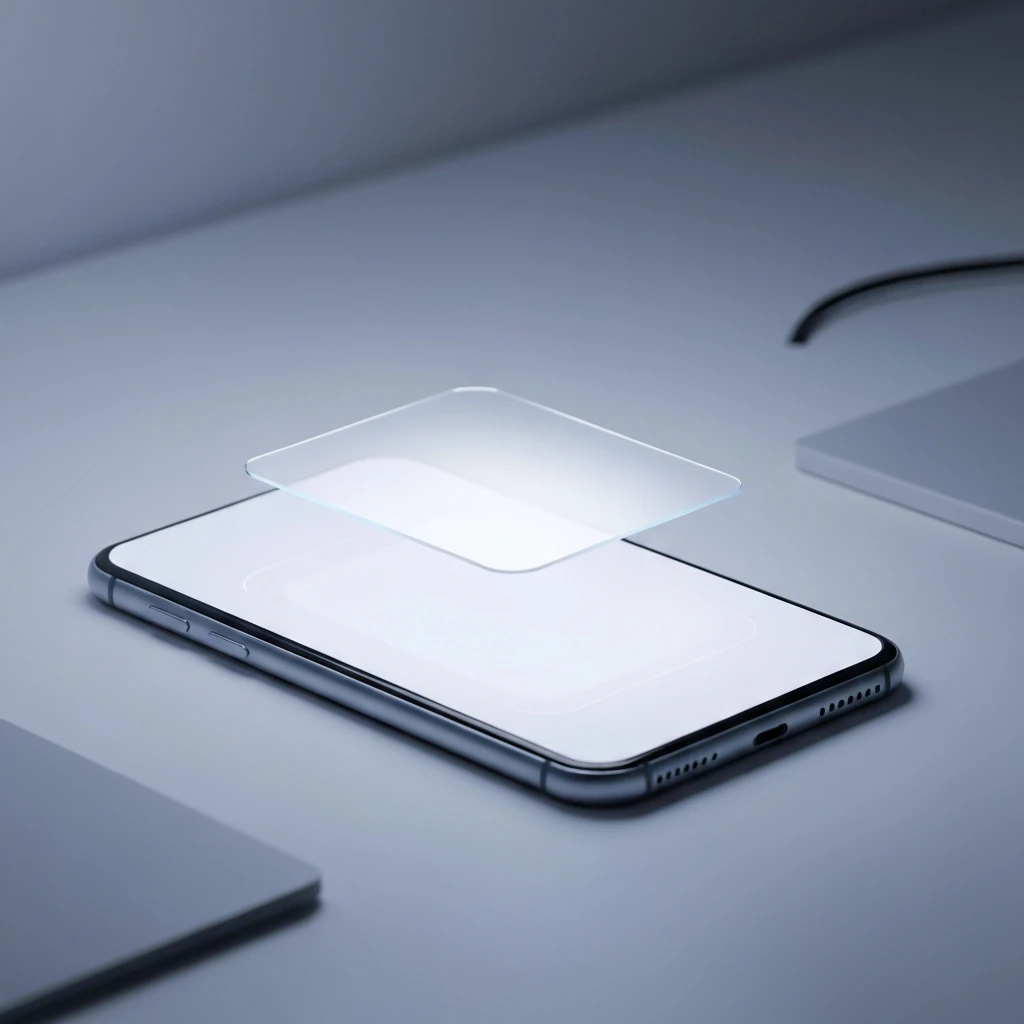
A mobile “screen” is usually a stack of layers. The outer cover glass protects the front surface. The touch layer, which most people call the digitizer, is what picks up your finger taps and swipes. Under that sits the display panel itself, and it’s usually either LCD or OLED. LCD assemblies need a backlight because liquid crystals don’t make their own light. OLED pixels light themselves up, so there’s no separate backlight involved.
A lot of newer devices use laminated or fused assemblies, which means the glass, touch layer, and display are all bonded together as one unit. That design does help with thinness, clarity, and touch response, but it also makes repairs a whole lot pricier. In older or more modular designs, the glass, digitizer, and panel may be more separable. In modern field service, though, full display assembly replacement is often the normal path.
There are also supporting parts: polarizer layers, display and touch controller circuitry, flex cables, connectors, and sensor cutouts for the front camera, earpiece, ambient light sensor, and proximity sensor. This matters because a failure may not be in the visible panel itself. A drop can tear a flex cable, a bad screen protector can block a sensor, and a software issue can mimic hardware failure.
4. Display Component-to-Symptom Matrix
| Component | Function | Common failure symptoms | Best first check |
|---|---|---|---|
| Cover glass | Protects display surface | Cracks, chips, sharp edges, image may still work | Inspect for safety risk and hidden panel damage |
| Digitizer | Converts touch into input | No touch, partial touch, ghost touch, inaccurate taps | Test all touch zones and multi-touch |
| LCD/OLED panel | Produces visible image | Black screen, lines, blotches, color shift, dead areas | Confirm device is powered on and inspect for impact/liquid |
| LCD backlight | Illuminates LCD from behind | Very dim image only visible under bright light | Use flashlight test on LCD only |
| Flex cable/connector | Carries power and signal | Flicker, intermittent image, partial display, no touch | Look for drop history and movement-related symptoms |
| Ambient light sensor | Controls auto-brightness behavior | Display too dim or too bright automatically | Disable auto-brightness and inspect sensor area |
| Proximity sensor | Turns off display near face during calls | Screen stays black during/after calls | Check for blocked sensor or case/protector interference |
5. Display Technologies: LCD, OLED, and Variants
For A+, keep the taxonomy clean. LCD is the broad category. Most modern LCDs in phones and tablets are TFT-LCDs. Within TFT-LCD, IPS is a subtype known for better viewing angles and color consistency. Older or cheaper implementations may use more basic TFT/TN-style behavior. VA exists as a TFT-LCD variant too, but it is far less relevant to phones and tablets than IPS, so do not treat it as a major mobile category.
OLED is the other major family. Because each pixel makes its own light, OLED can deliver really strong contrast and blacks that look truly black. AMOLED is a subtype of OLED that uses an active matrix for pixel control. Super AMOLED is vendor branding commonly associated with AMOLED-family displays; it is not a separate unrelated technology.
Retina is not a panel technology. It is a marketing term for high pixel density, usually discussed in terms of PPI. Vendor names may vary, but most of them still map back to either LCD or OLED families.
| Technology | Key trait | Support relevance |
|---|---|---|
| LCD | Uses a backlight | Can have backlight failure; flashlight test may help |
| TFT-LCD | LCD with transistor control per pixel | Common base implementation in mobile devices |
| IPS TFT-LCD | Better viewing angles and color than basic TFT implementations | Common in tablets and many phones |
| OLED | Self-lit pixels, no backlight | Burn-in, image retention, uneven aging, high contrast |
| AMOLED | OLED subtype | Do not confuse with a separate display family |
| Retina | High PPI marketing term | Think sharpness, not panel type |
6. Must-Know Display Specs
The exam may reference specs in support language rather than engineering language. Resolution is total pixel count. PPI is pixel density and affects perceived sharpness. Mobile displays are usually built in portrait orientation first, so the resolution numbers you see may be listed that way. Brightness, measured in nits, affects outdoor readability. Refresh rate affects smoothness; many devices now use adaptive 60/90/120 Hz behavior to balance responsiveness and battery life.
Power use is especially important on mobile devices. LCD backlight power is relatively less dependent on content because the backlight stays on. OLED power use varies much more with what is on screen: dark content can reduce power draw because black pixels may be effectively off, while bright white screens can use more power. Brightness level, refresh rate, and panel driver behavior all matter too.
7. Touchscreen Technologies and Sensor Behavior
Modern smartphones and tablets mainly use capacitive touchscreens, specifically projected capacitive designs. They detect changes in an electrical field, which is why they respond well to fingers and conductive styluses but may not respond to ordinary gloves unless the device or glove supports that use case. Capacitive touch supports multi-touch gestures and is the standard answer for modern mobile devices.
Resistive touch is older and less common in current phones. It responds to pressure rather than conductivity and can work with a stylus or gloved input, but it is less common in modern A+ mobile examples. Know it as a contrast item.
Touch problems are not always a physically broken digitizer. They can also come from the touch controller, firmware problems, moisture, contamination, charger interference, or even a bad screen protector. If the device only acts up while it’s charging — especially with a cheap or questionable charger — electrical noise is definitely something to think about.
Sensors matter too. The ambient light sensor affects auto-brightness. The proximity sensor is different: it turns the screen off when the phone is near your face during a call. If a user says, “My screen goes black on calls and will not wake properly,” do not assume the panel is bad. Start by checking whether the proximity sensor’s blocked, covered, or just out of alignment.
8. Common Symptoms and What’s Most Likely Causing Them
| Symptom | Most likely cause | Notes |
|---|---|---|
| Cracked glass, image and touch still work | Cover glass damage | Often still usable, but unsafe or noncompliant with policy |
| Image works, touch does not | Digitizer, touch flex, touch controller, or software issue | Test multiple zones and restart device |
| Touch works, no visible image | Panel failure, connector issue, display power issue | On LCD, also consider backlight failure |
| Black screen, device still vibrates/rings | Failed display assembly, flex issue, board/display power fault, software/display driver issue | Do not assume powered off |
| Faint image seen with flashlight | LCD backlight failure | Flashlight test is mainly for LCD, not OLED |
| Lines, blotches, “ink” spread after drop | Panel damage | Common with cracked LCD layers |
| Ghost touch | Digitizer fault, moisture, contamination, bad protector, charger interference | Remove accessories and test off charger |
| App outlines remain on OLED | Temporary image retention or permanent burn-in | Retention may fade; burn-in is uneven pixel aging |
| Too dim only with auto-brightness on | Sensor/settings issue | Check ambient light sensor area |
| Screen black during calls | Normal proximity behavior or blocked sensor | Especially common with thick cases or poor protector alignment |
Also distinguish dead pixels from stuck pixels. A dead pixel does not function. A stuck pixel may stay on in one color. On OLED, a dead pixel doesn’t light up at all; on LCD, you might be dealing with a stuck subpixel while the backlight still lights the area behind it. And don’t mix either of those up with dust or debris stuck under a screen protector — that trips people up all the time.
9. Troubleshooting Workflow: A Simple Way to Work the Problem
Use the same repeatable process every time:
1. Verify device state. Does it power on? Does it vibrate, ring, or make any kind of sound? Can it still connect to a charger or a computer without any drama?
2. Inspect external damage. Look for cracked glass, frame bend, lifted display, liquid indicators, or signs of swelling.
3. Test image separately from touch. A visible image does not prove touch works, and working touch does not prove the panel is healthy.
4. Check brightness and sensors. Disable auto-brightness, inspect sensor cutouts, and consider accessibility settings, color inversion, zoom, or battery saver.
5. Use the right diagnostic clue. The flashlight test helps with LCD backlight diagnosis, but not in the same way on OLED because OLED has no backlight.
6. Remove variables. Take off the case, remove a questionable screen protector, unplug the charger, restart the device, and see whether a recent update or app change lines up with the symptom.
7. If safety’s part of the picture, escalate it right away. If you’ve got battery swelling, liquid exposure, overheating, or corrosion risk, stop the aggressive testing and follow your service policy.
10. Repair and Replacement Considerations: What to Think About Before You Open It Up
In many current devices, glass, digitizer, and panel are laminated together, so front-line service usually replaces the full display assembly rather than only one layer. Glass-only refurbishment does exist, but it is specialized shop work with equipment, alignment, and bonding steps that are not typical for help desk or field support.
Before you open a device, use ESD precautions, power it down if you can, and disconnect the battery as early as the service procedure allows. Be especially careful with glued batteries and displays. A punctured lithium-ion battery can catch fire, so this is absolutely one of those moments where you don’t want to get careless. If the battery’s swollen and pushing the display up, stop using the device and treat it like a safety issue, not just a cosmetic one.
Adhesive removal, seal replacement, and the quality of the reassembly all matter a whole lot. Opening a device can compromise ingress protection. Manufacturer seals and procedures can restore some resistance, sure, but getting the original IP rating back isn’t always guaranteed. After the replacement, make sure the brightness looks right, touch works across the whole screen, multi-touch is solid, the front camera and earpiece still line up, the sensors behave normally, and any vendor-specific calibration or color matching still looks good. Some devices can also run into part-pairing or feature-loss issues when you use non-manufacturer parts.
11. Software, Settings, and Enterprise Impact
Not every display complaint is hardware. Flicker, color shifts, touch lag, auto-brightness weirdness, and rendering glitches can all come from firmware, graphics or display driver behavior, power-saving settings, or even just one bad app. Safe mode, restart testing, and update correlation can help separate software from hardware.
In enterprise environments, display failure is also a security problem. If the user can’t see the lock screen, enter a PIN, approve MFA prompts, or confirm a wipe or backup, then the issue is no longer just annoying — it’s affecting access and compliance too. On managed devices, make sure you follow identity verification and chain-of-custody steps before you repair or replace anything. For kiosks, POS tablets, rugged field devices, or shared business tablets, even a partial touch failure can bring the whole workflow to a dead stop.
12. Exam Tips, Drills, and Practice Questions: the Stuff That’s Actually Worth Memorizing
High-yield facts first:
- LCD uses a backlight, but OLED doesn’t.
- AMOLED is still just a subtype of OLED.
- Retina is a marketing term for high pixel density.
- Cracked glass does not automatically mean a dead panel.
- Image present does not prove the digitizer works.
- Black screen does not automatically mean the device is off.
- Flashlight test points to LCD backlight issues, not OLED backlight issues.
Rapid drill: “Glass protects, digitizer detects, panel presents, LCD needs light behind it, OLED lights itself.”
Mini diagnostic lab:
- Cracked front surface, image normal, touch normal → cover glass
- No touch in one strip of the screen after drop → digitizer or touch flex
- Dim image only visible under flashlight on LCD tablet → backlight
- Phone rings but display stays black on OLED → panel, flex, or display power circuit
- Screen blacks out during calls only → proximity sensor behavior
Practice questions:
- 1. Which component converts finger touches into signals? Answer: Digitizer. Wrong answers are wrong because glass protects and the panel creates the image, but neither performs touch sensing.
- 2. A phone has a black screen but still vibrates for notifications. What is the best conclusion? Answer: The device may still be on; suspect display assembly, flex, power-to-display fault, or software issue. Wrong to assume the phone is off.
- 3. Which display family requires a backlight? Answer: LCD. OLED and AMOLED are self-emissive.
- 4. A user reports faint app outlines on an OLED screen. What is the likely issue? Answer: Image retention or burn-in. Not backlight failure, because OLED has no backlight.
- 5. What does “Retina” refer to? Answer: High pixel density marketing terminology. Not a separate panel technology.
- 6. A device becomes too dim only when auto-brightness is enabled. Best first step? Answer: Check settings and the ambient light sensor area. Do not replace the panel first.
Final exam checklist: Can you identify the component? Distinguish LCD from OLED? Separate touch failure from image failure? Recognize sensor/settings problems? Choose the safest next action after a drop, liquid exposure, or battery swelling? If yes, you are in good shape for this A+ objective.